

Downloading Result Files
With the Datafiniti Portal, downloading your results is a breeze!
Run the Download
Download File Format
Be sure to double check which file format you are downloading. Once you trigger the download, you cannot change the format and any records downloaded will count towards your total credits used.
Once you have run a query and generated your results, you can start a download by clicking on "Download."
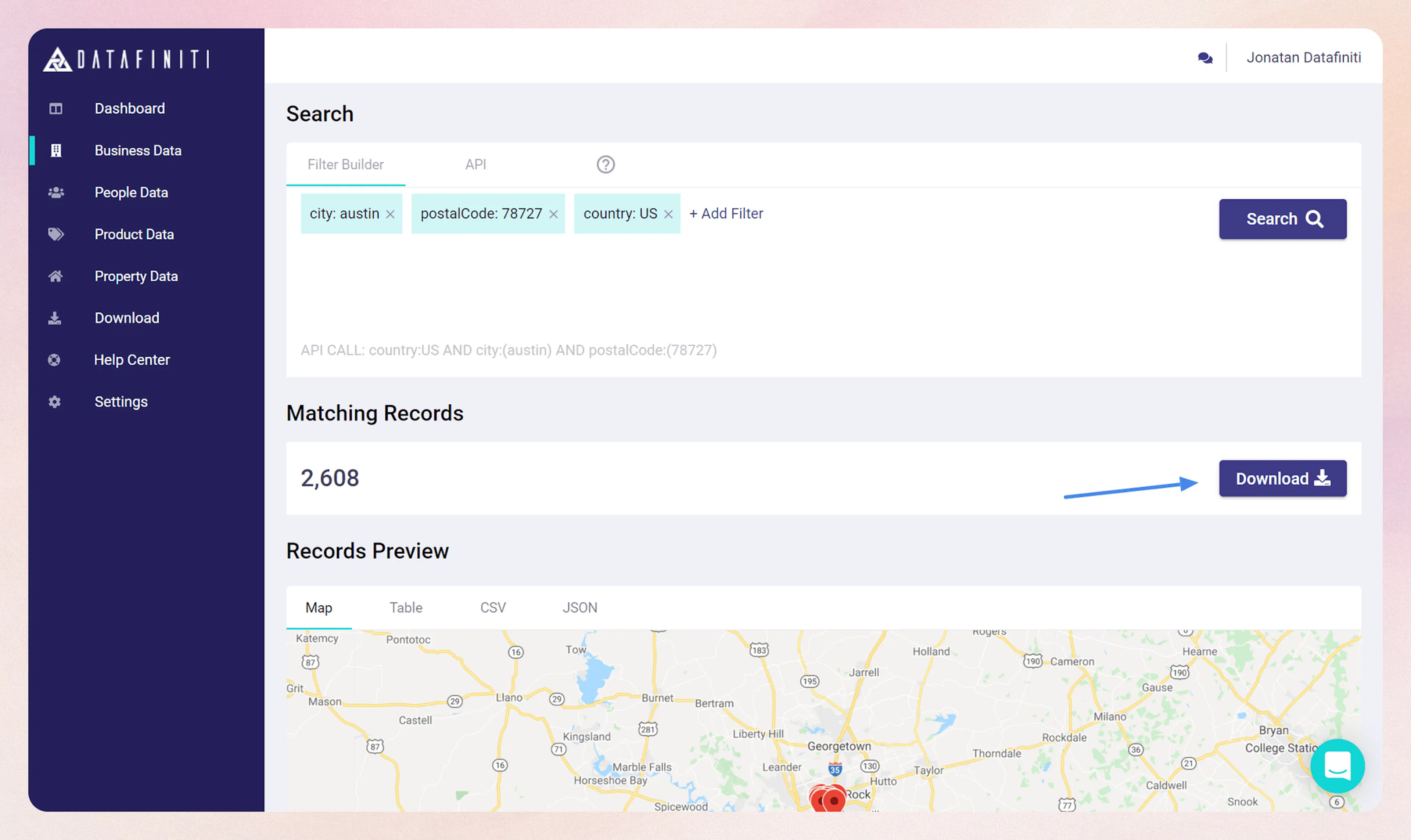
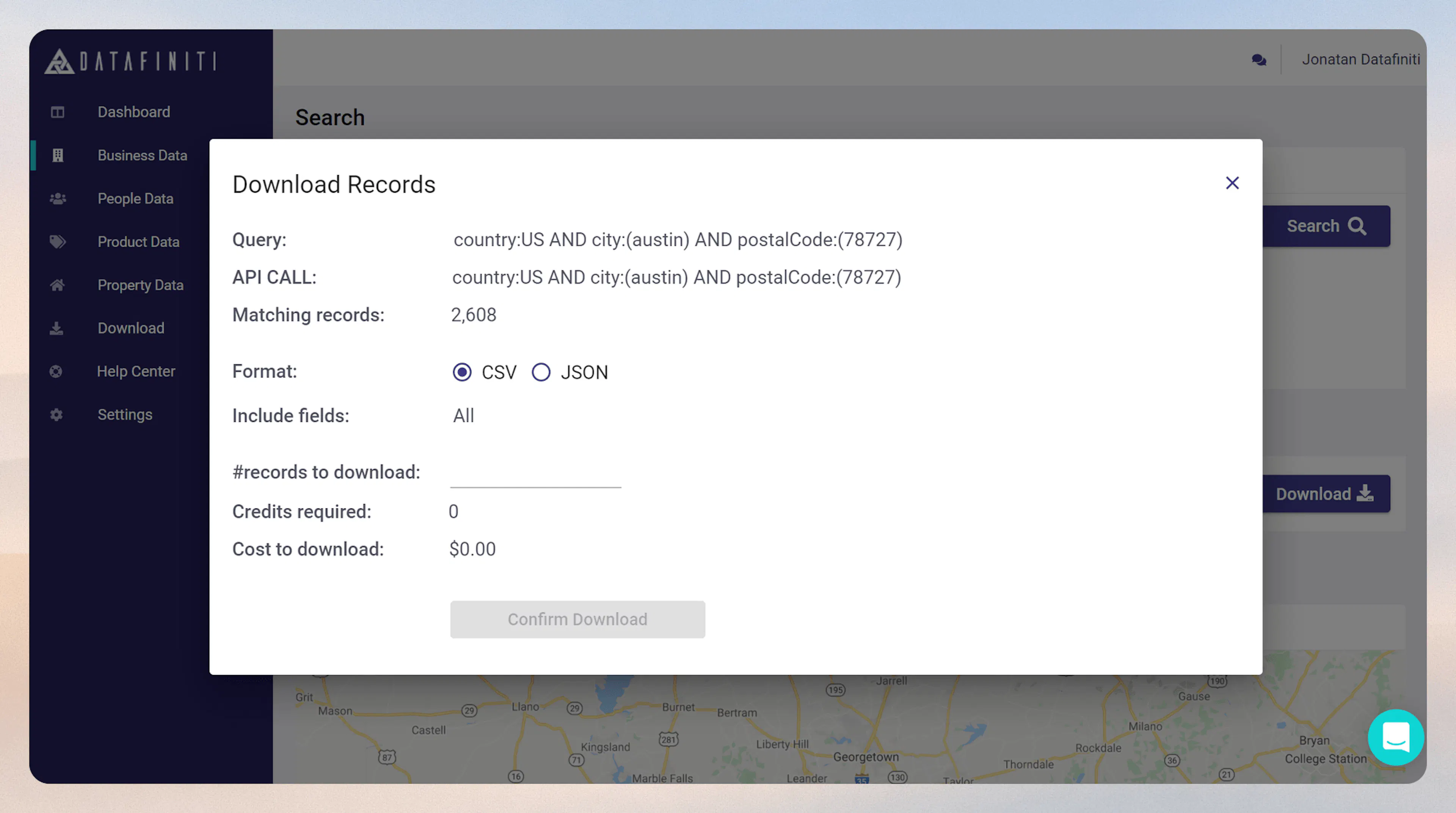
The "Download" button will prompt you with the "Download Records" dialog where you can:
- Determine if you want JSON or CSV format
- Set the number of records to download
- Determine which specific view you'd like to use
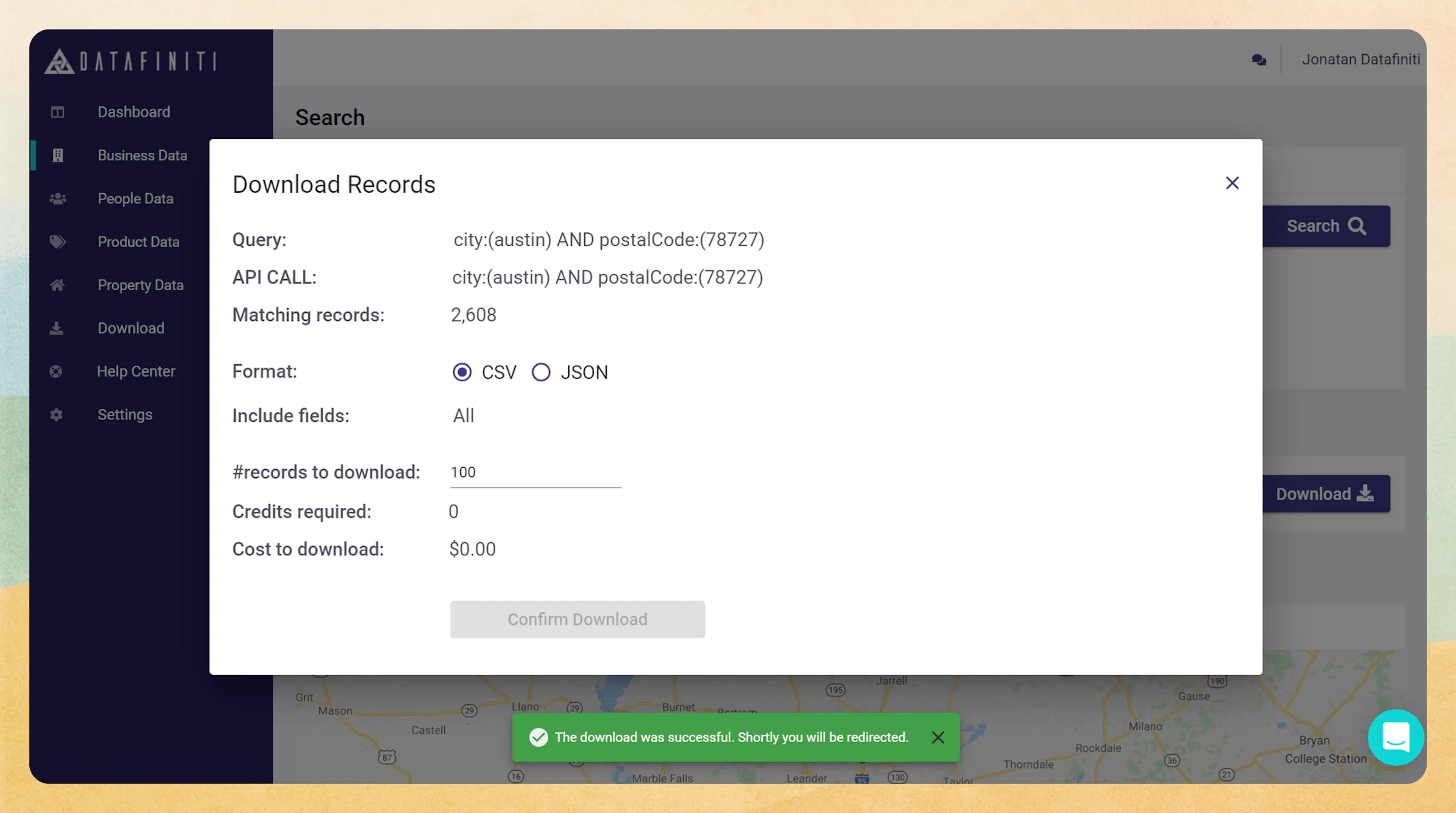
After you submit your download, you'll see the "Green box" prompt telling you that you will be redirected shortly to the downloaded results page.
Access Your Downloads
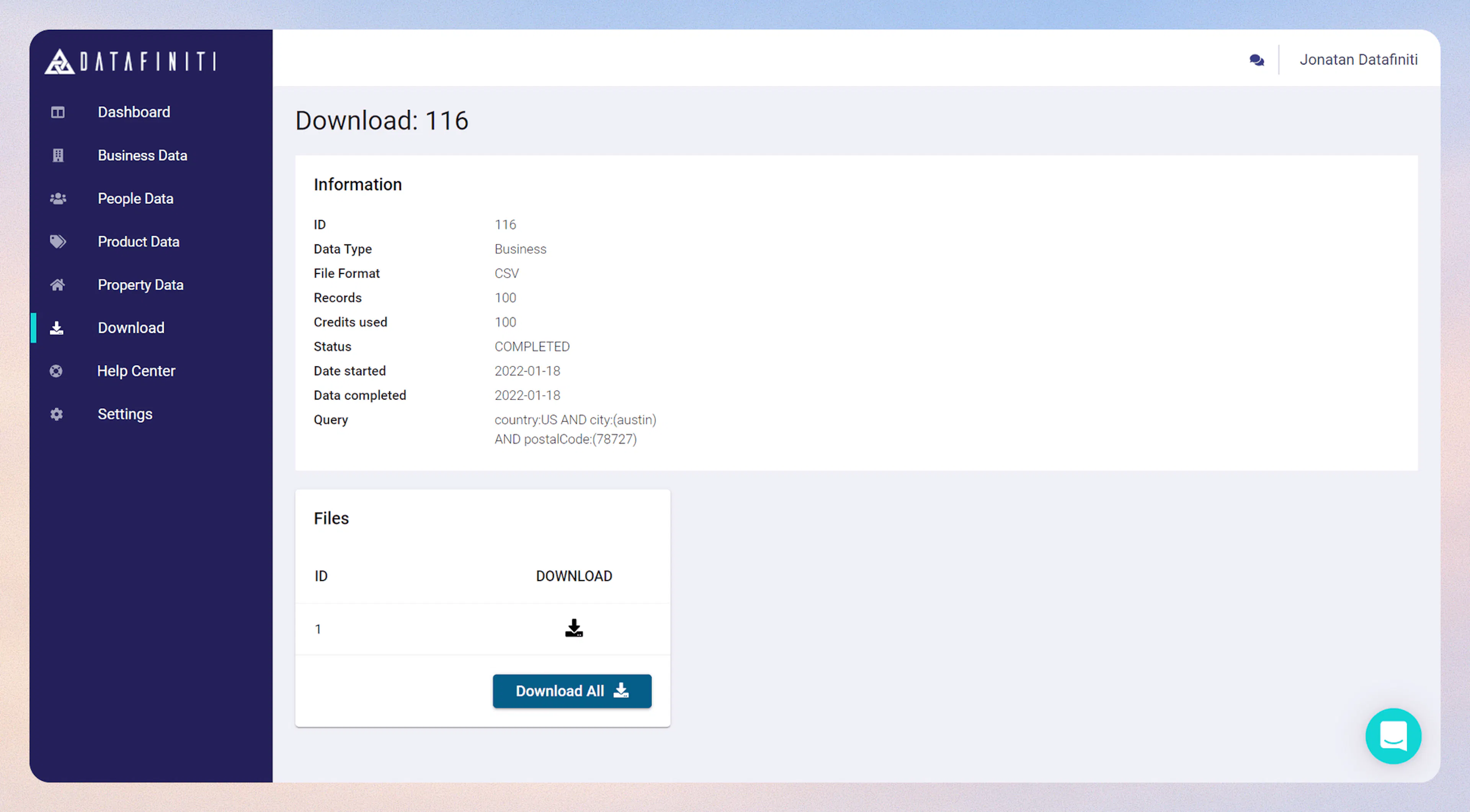
On the "Downloads" tab of your account, you can see all downloads you have requested. Clicking on the block of the download ID will take you to your specific downloaded records.
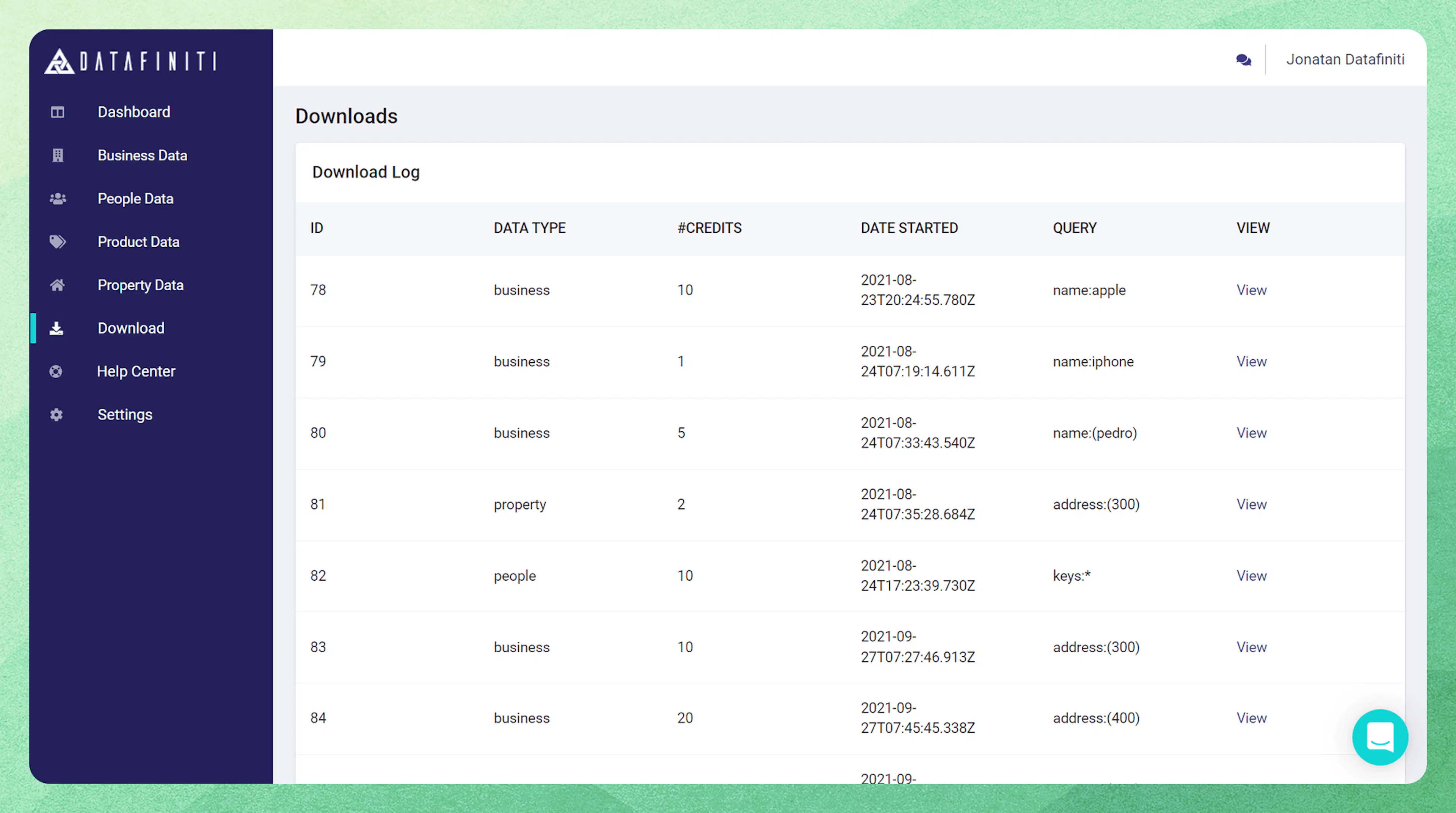
Clicking on "Download All" will provide you with more specifics regarding the query in the "query" field on this page. Information here is pertaining to this specific query. "Download All" will show the amount of records used in the "credits used" field.
It's as simple as that! You are now ready to use your data however you need!