Finding Compliance Features In Product Data
In this guide we will explore how to find compliance features in our product data. This process provides a streamlined and efficient way to access and analyze product data with compliance features. By using the Datafiniti portal and applying the specified filter, customers can quickly identify products that meet specific compliance criteria, such as safety standards or regulatory requirements. This helps businesses make informed decisions about product selection, marketing strategies, and compliance efforts. Overall, the ability to easily find Compliance Features in our Product Data enhances data-driven decision-making and helps businesses stay compliant with relevant regulations.
Let's get started:
Select the features key
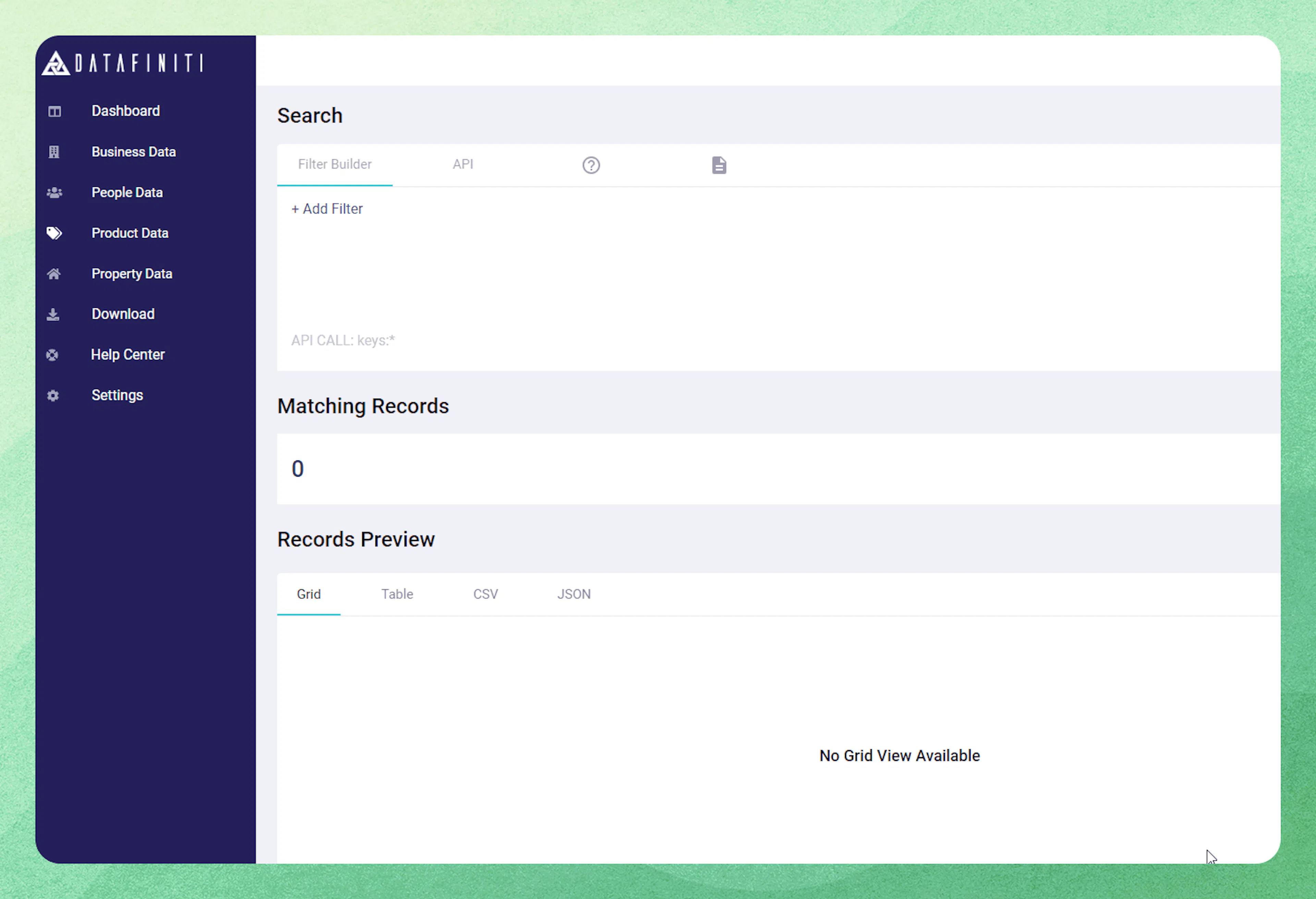
After selecting the product data page in your navigation bar, we can add a product data filter. From the filter builder "Add Filter" select features. Then key in the dropdown.
After selecting your key, click "search"
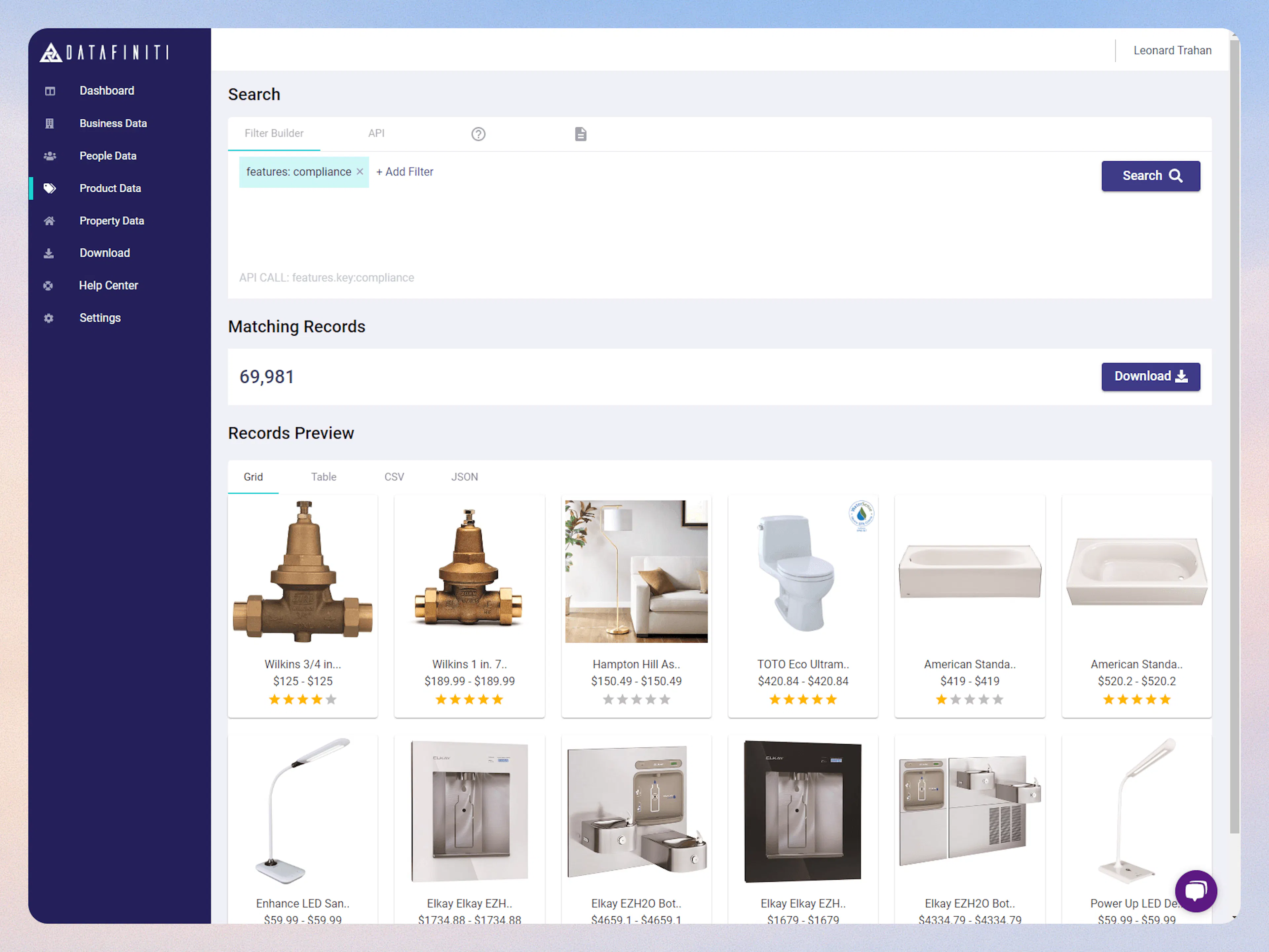
You see a list of product all containing the following features.key of compliance.
Verifying your Compliance Values
Once you have a set of compliance key products, you can comb through the product data and view what compliance ratings / standard the product has. This can be done 3 ways:
- viewing the product in table view
- viewing the JSON view of the product
- downloading the data
Viewing the products in table view
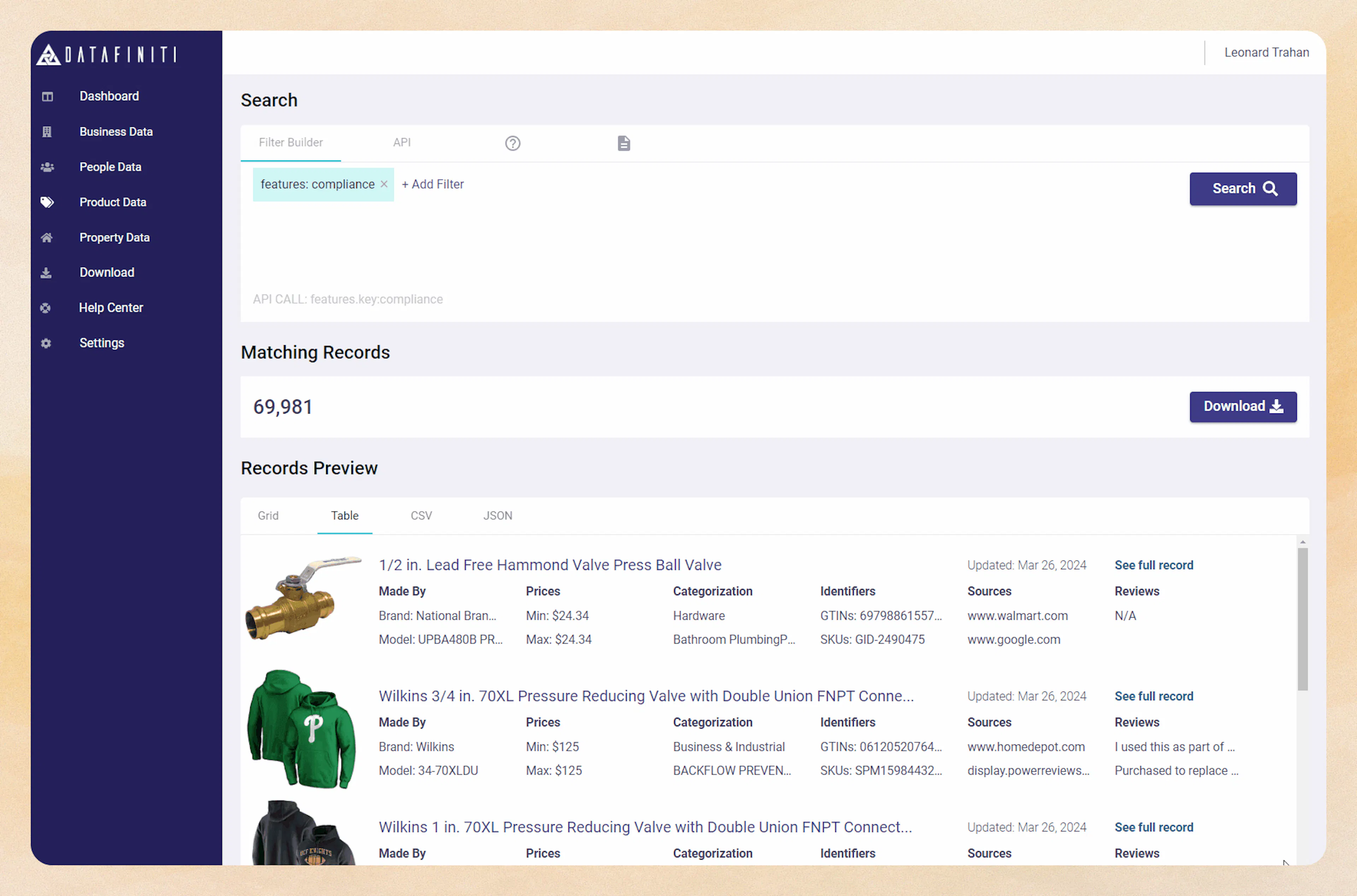
In your "Records Preview" of your search result you can select "Table" as the view here:
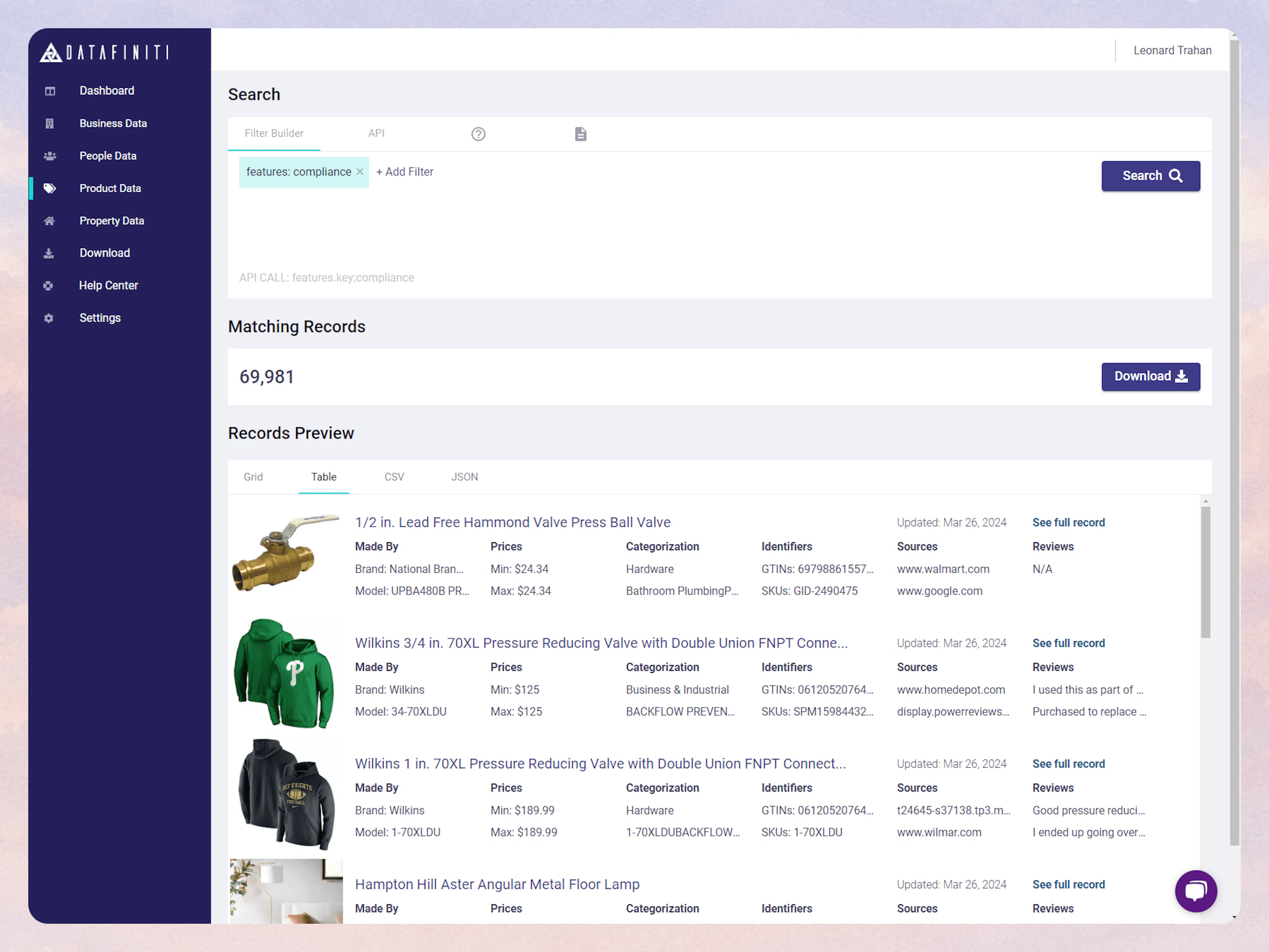
This will present a more detailed view of the individual products themselves. You can click on the title of each product to expand the view:
Expanded View Credit Cost
Please note that expanding the view of a product cost 1 product credit.
In the Features table you will see your "Compliance" ratings / standards
JSON table view
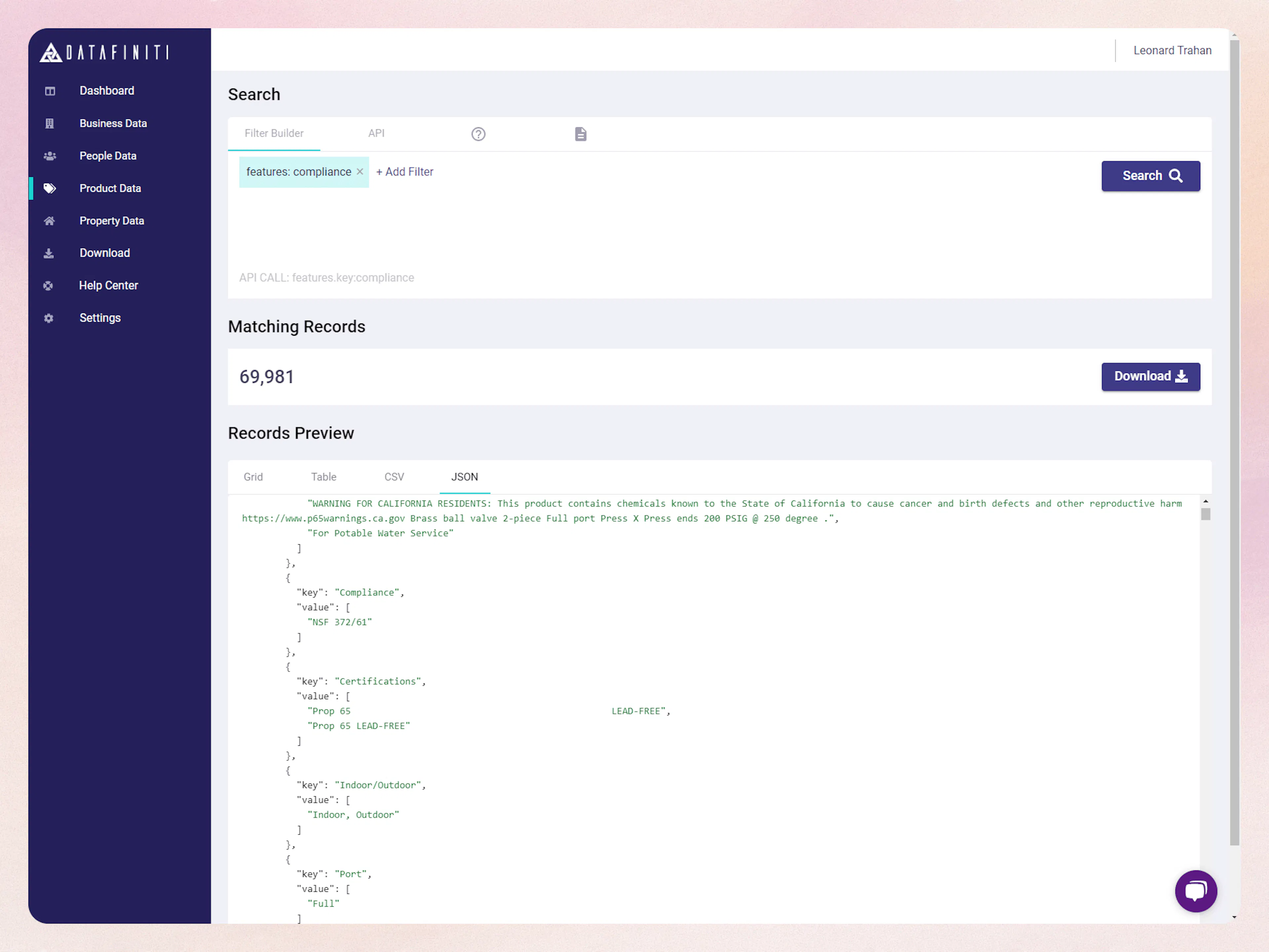
Your can also select the JSON view from the Preview Records results.
Downloading your results
You can click download to open the download box here:
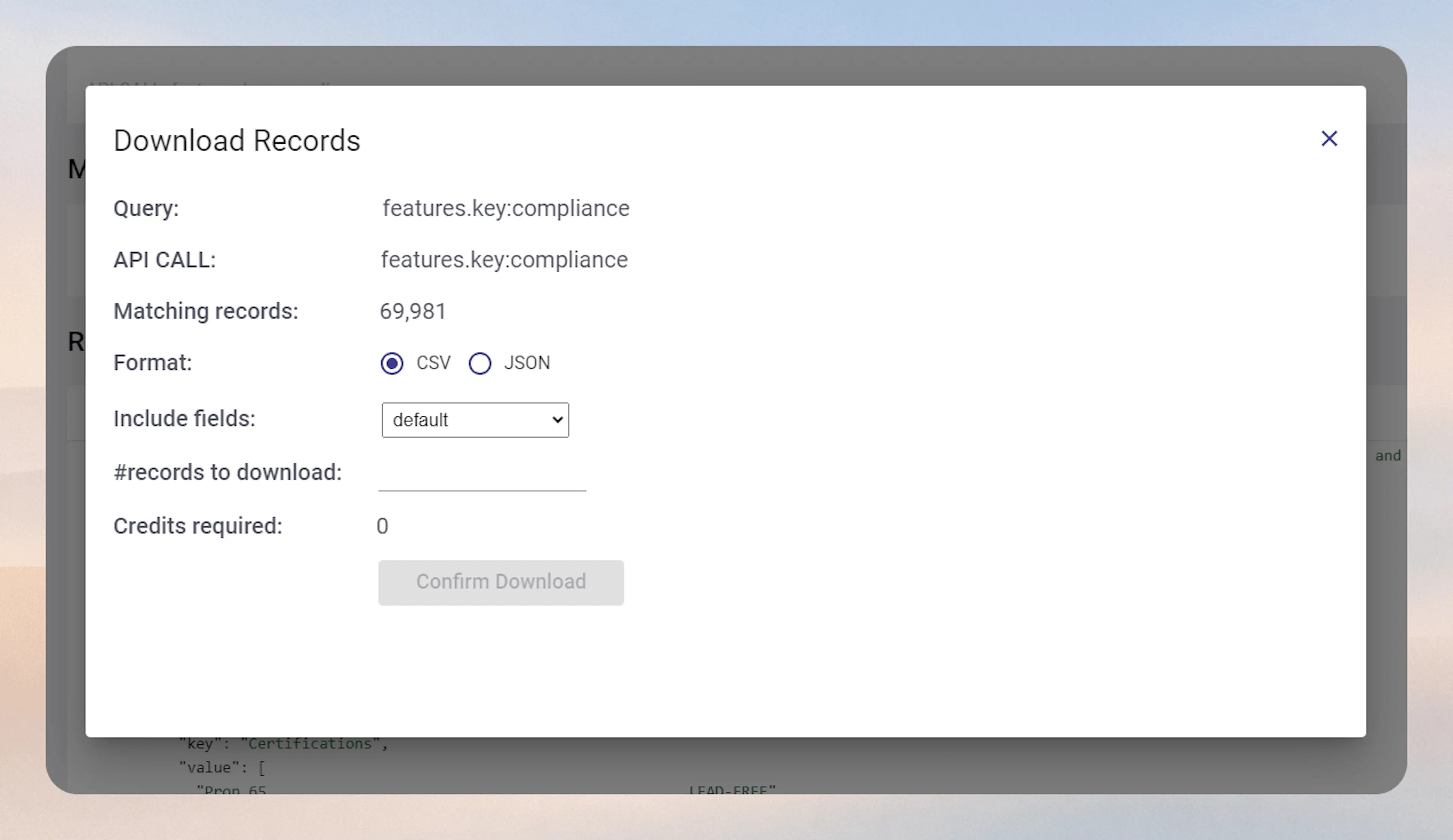
Downloads
For more information on how download work, you can visit here:
Portal: Downloading Results
Searching for Specific Compliance Values
Next we will search for specific compliance values in products that we have found already. Using the filter we have already built with Features.key:compliance, we will add a value to the search. features.key:UL 399
Select the "features" field again. From the drop down, select "value" and type "UL 399". (with quotes)
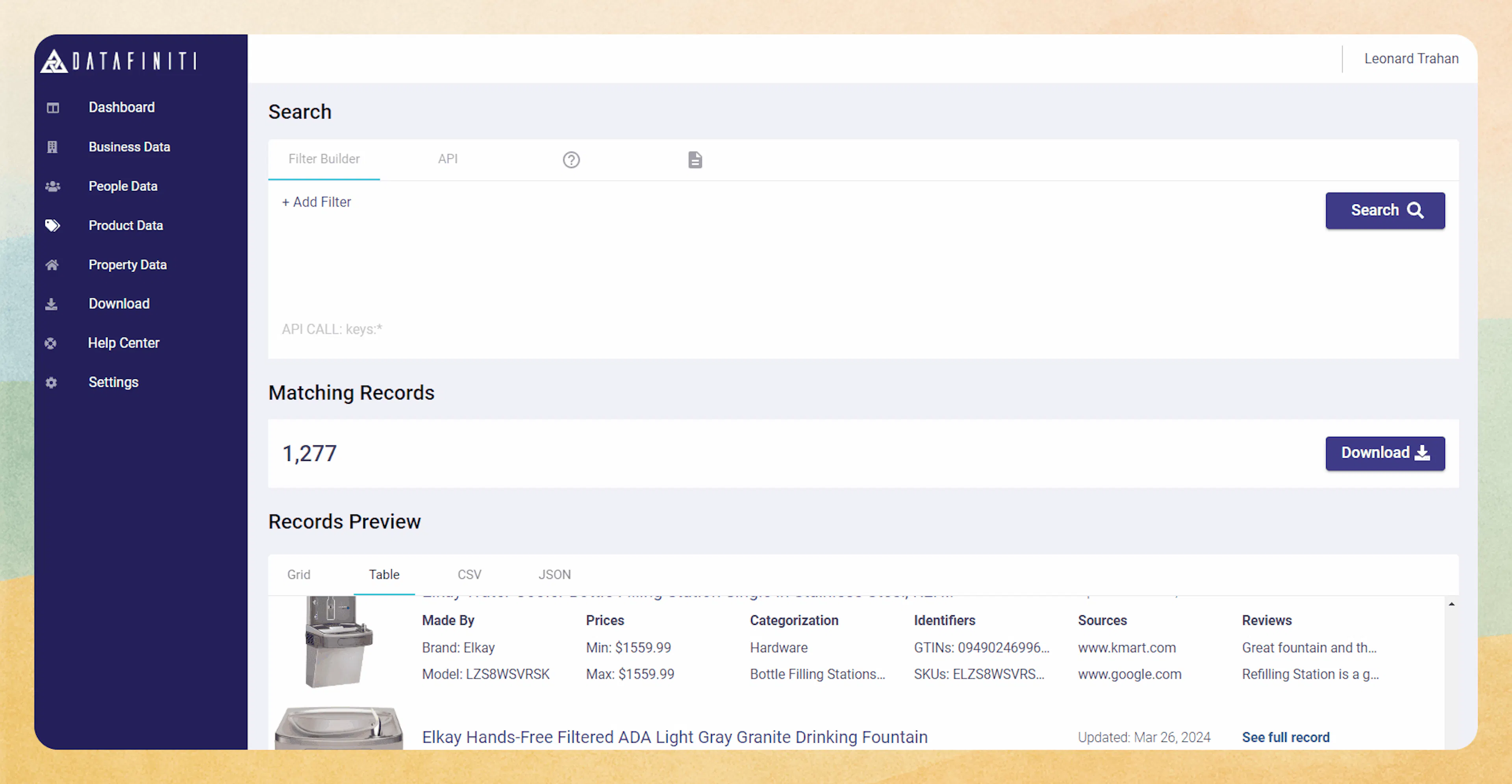
From here you can review the dataset however you would like.
Finding a Singular Product with Compliance Populated
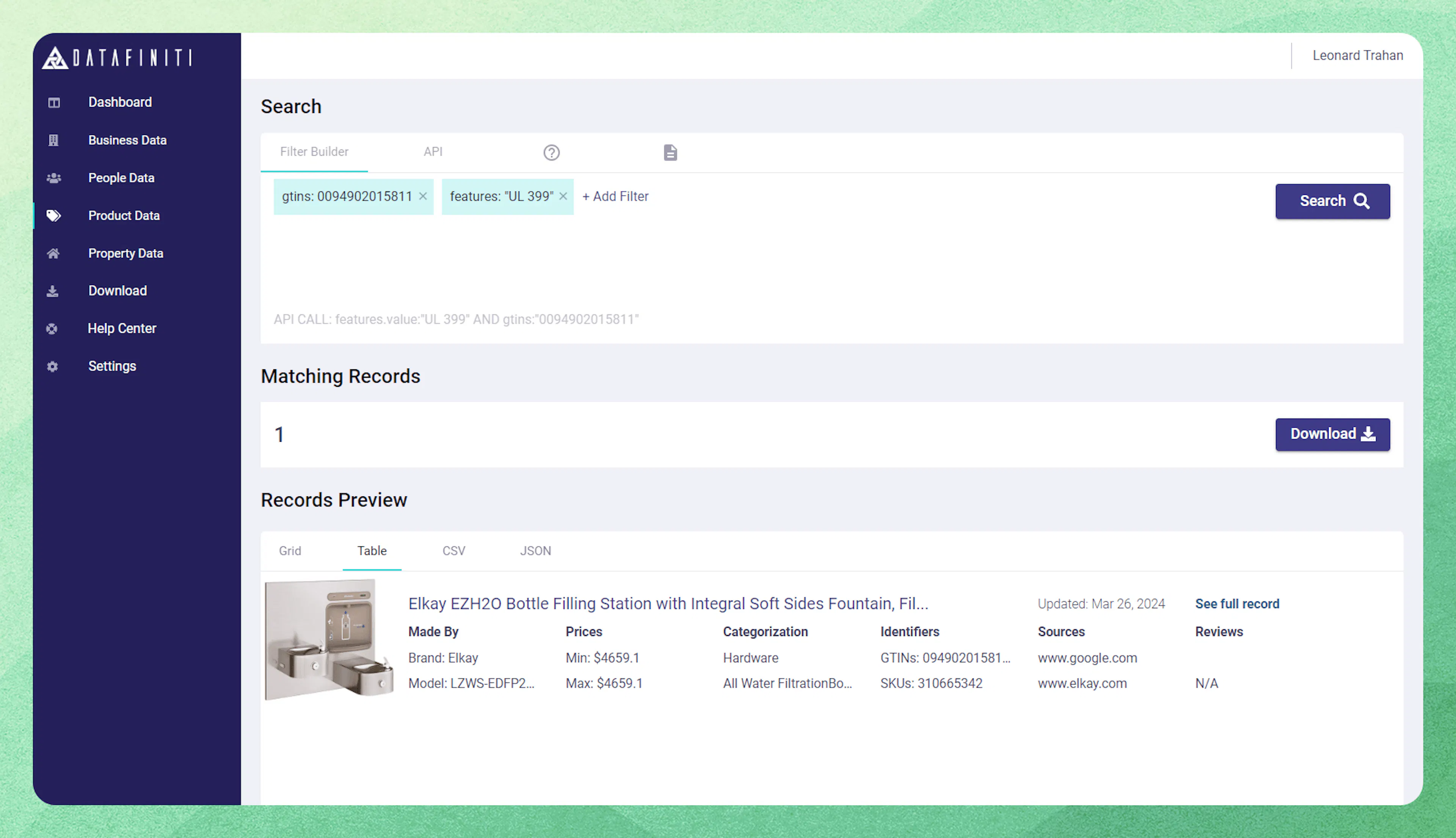
In some cases you may want to only return specific products, but only if it has the compliance value populated. This can be done by combining a GTINS filter with your features.value filter.
In this example we will search for the product code 0094902015811 with "UL 399" compliance rating.