
Property Data with WPGetAPI
Introduction
This guide walks you through the process of integrating Datafiniti's API with the WPGetAPI plugin to automatically create WordPress posts. WPGetAPI enables direct API calls from WordPress and can transform API responses into posts.
Prerequisites
- A WordPress website with administrator access.
- The WPGetAPI plugin installed and activated (Download Here).
- A Datafiniti API key (Sign up or Log in).
1. Install and activate WPGetAPI
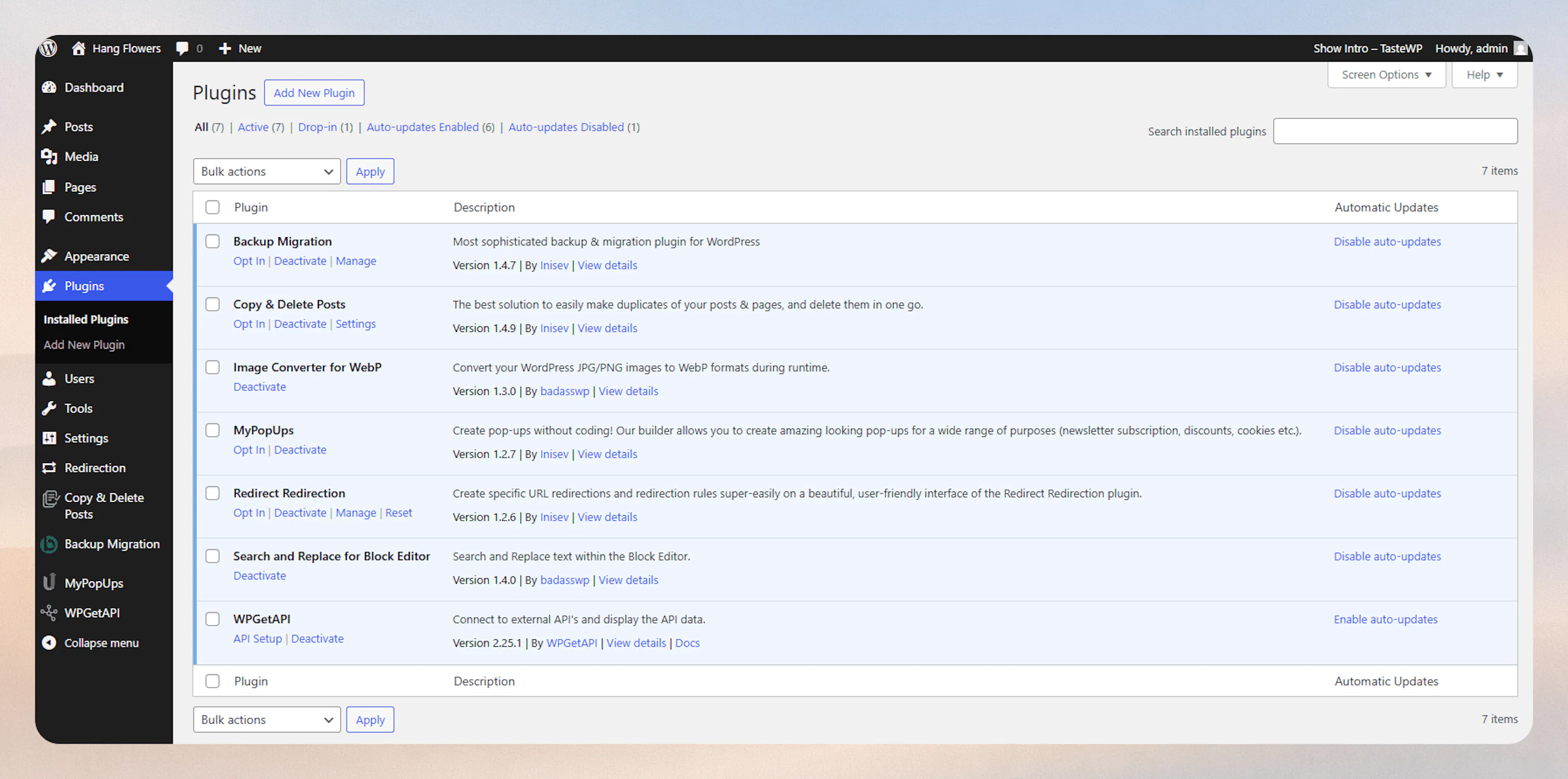
- Log in to your WordPress admin panel.
- Navigate to Plugins > Add New.
- Search for WPGetAPI.
- Click Install Now, then Activate the plugin.
2. Create your Datafiniti API endpoint
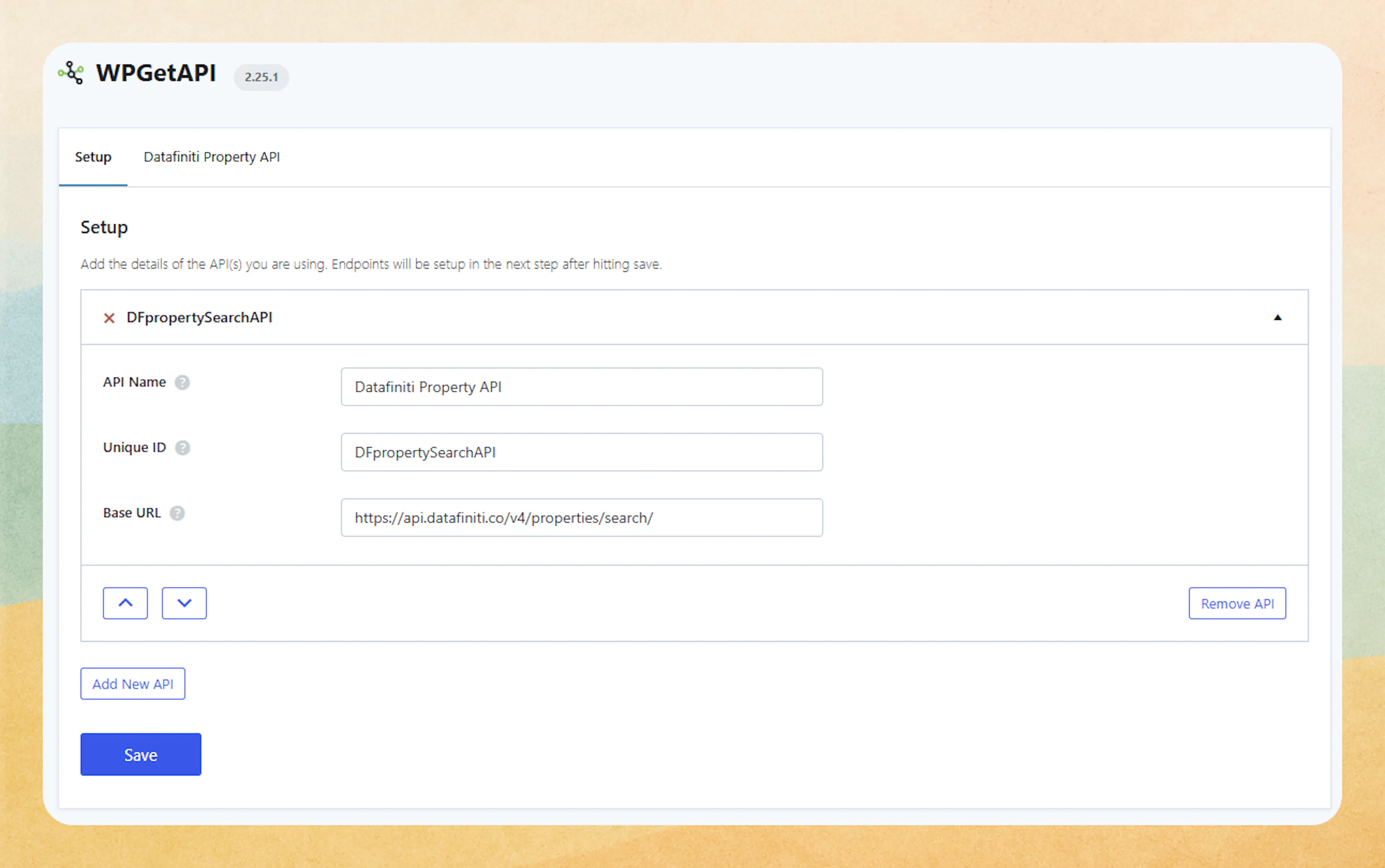
- In WordPress, go to WPGetAPI > APIs.
- Configure your setup
- API Name - Datafiniti Property API
- Unique ID - any unique name
- Base URL - https://api.datafiniti.co/v4/properties/search/
- Save
3. Import WPGetAPI Datafiniti API connection
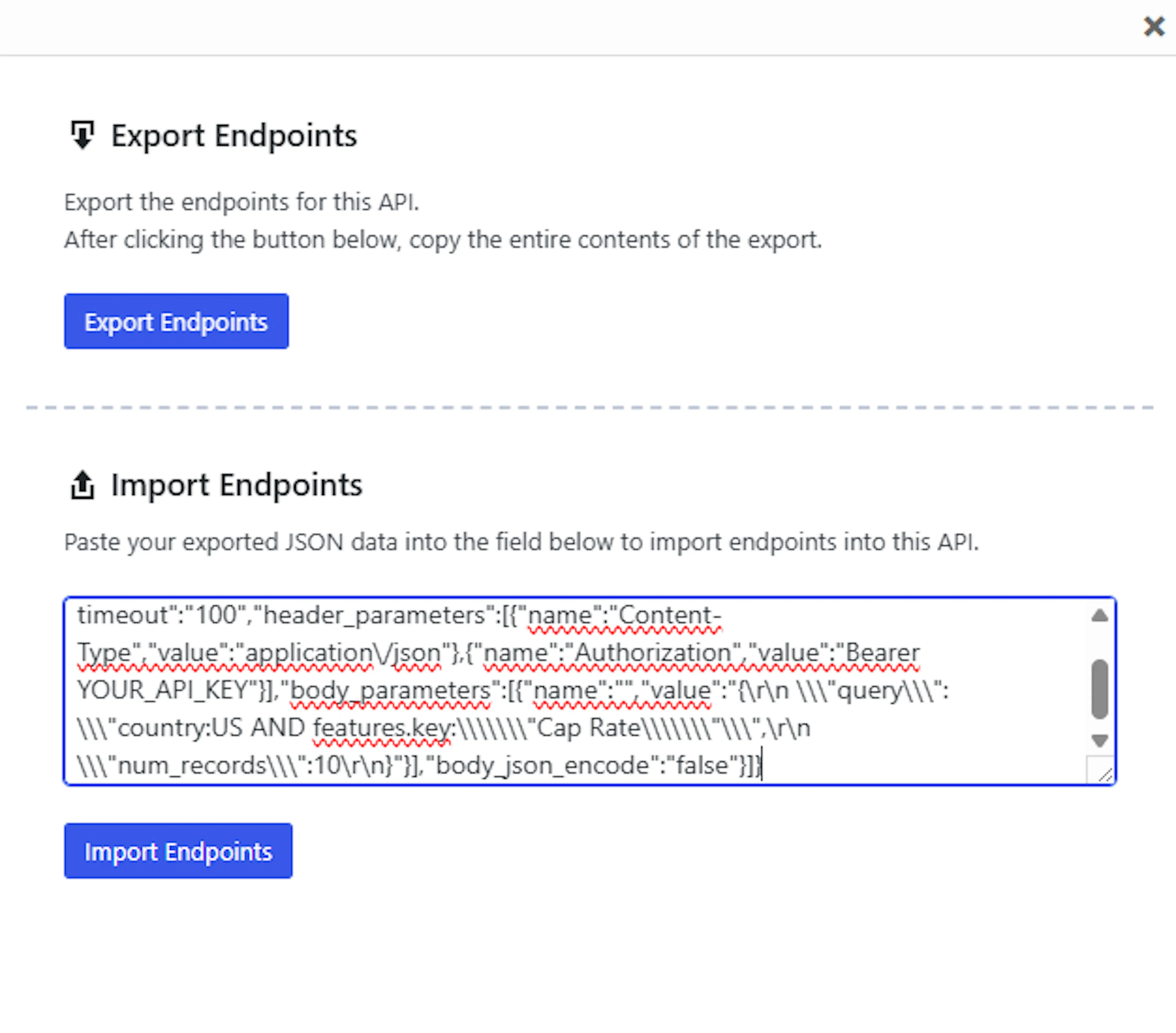
You can import the following code my clicking on your Datafiniti Property API tab. Click the "Export/Import" button here:
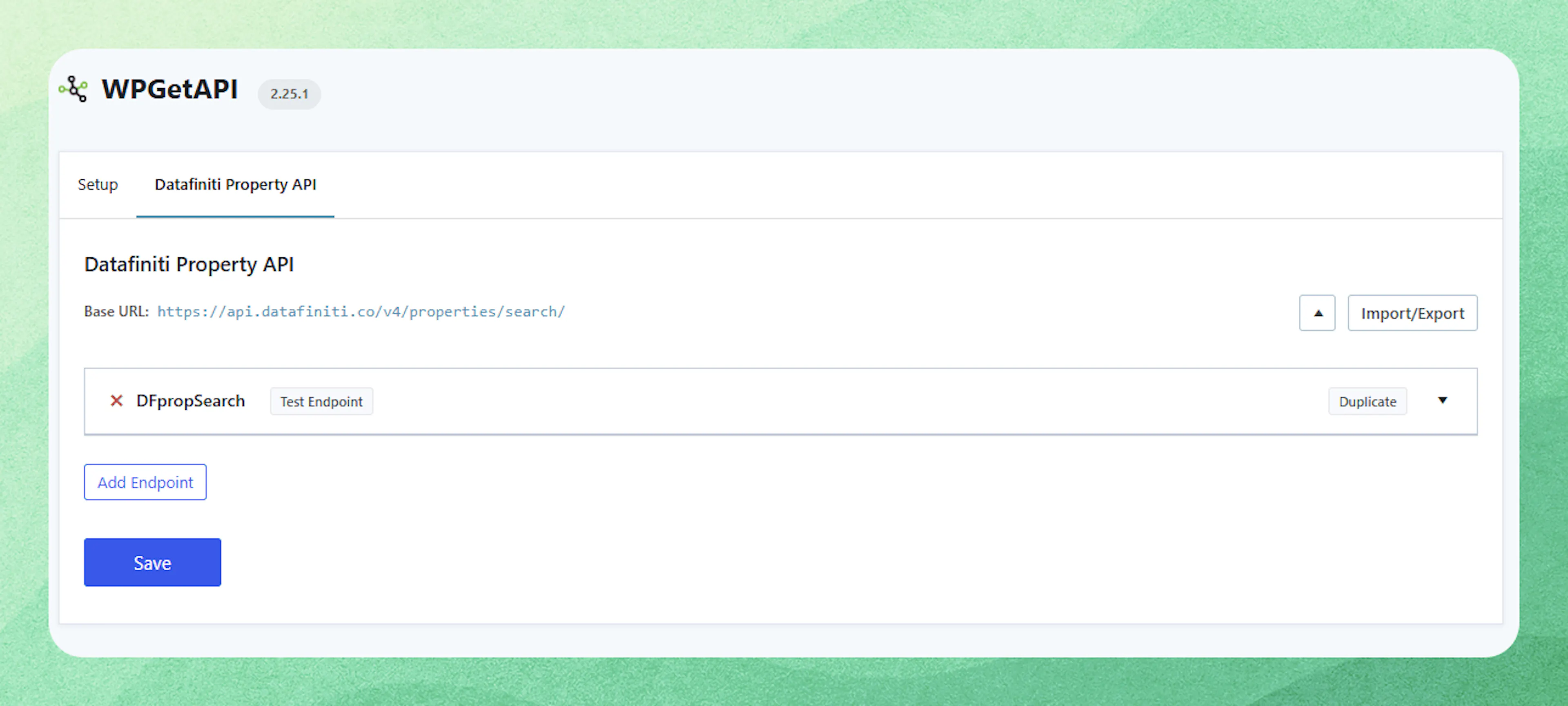
You can use this code to import the Datafiniti Property Search API endpoint:
{"endpoints":[{"id":"DFpropSearch","endpoint":"\/","method":"POST","results_format":"json_string","timeout":"100","header_parameters":[{"name":"Content-Type","value":"application\/json"},{"name":"Authorization","value":"Bearer YOUR_API_KEY"}],"body_parameters":[{"name":"","value":"{\\"query\\": \\"country:US AND features.key:\\\\\\"Cap Rate\\\\\\"\\",\\"num_records\\":10}"}],"body_json_encode":"false"}]}
The import box is as follows, just copy and paste the code into the import box:
4. Configure your Datafiniti API endpoint
Now move to your new Datafiniti Property API tab.
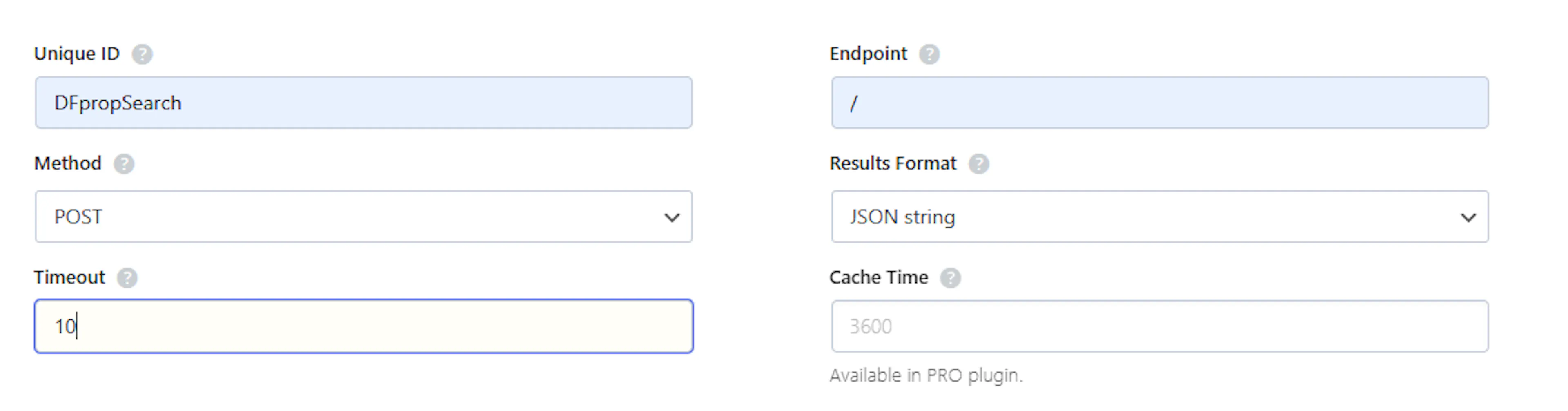
- Click Datafiniti Property API and configure the following settings:
- Unique ID -
<anything you want> - Endpoint - /
- Please note that the "/" is to ensure the Datafiniti API endpoint is formatted properly.
- Method - POST
- Results Format - JSON Format
- Timeout - between 10 - 1000
- Unique ID -
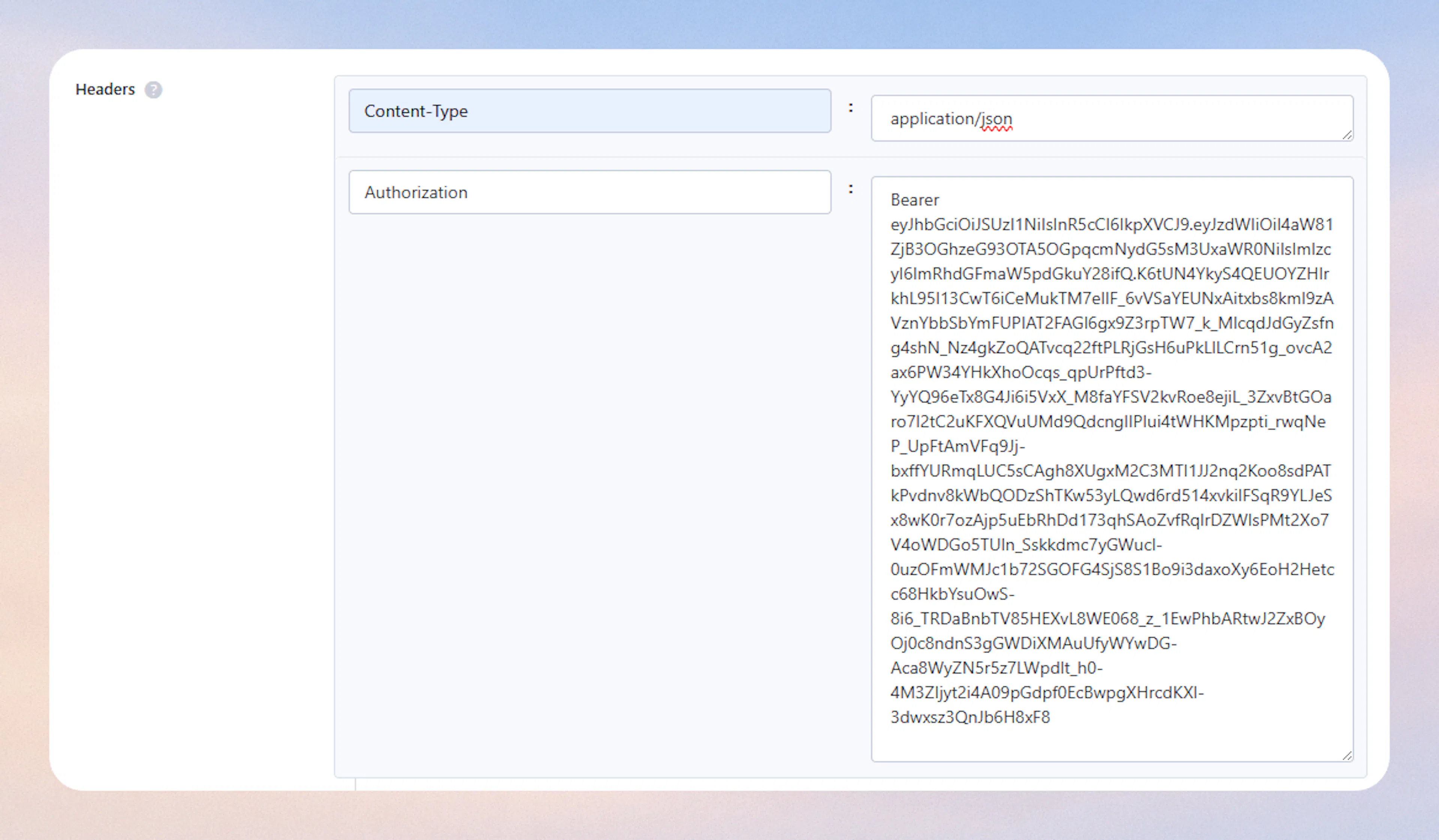
Next we will add the Datafiniti Property Search API header:
Context-Type: application/jsonAuthorization: Bearer <your_API_key>
Datafiniti API Key
Be sure to remove any <> around your API key. You can find your Datafiniti API key from the portal page here.
Now we will add the API query body. This will mimic the same format that you would build your query in Postman or in code. For this example we will use the following code:
{
    "query": "country:US AND features.key:"Cap Rate"",
    "num_records":10
}
Note you do not have to insert anything into the left column

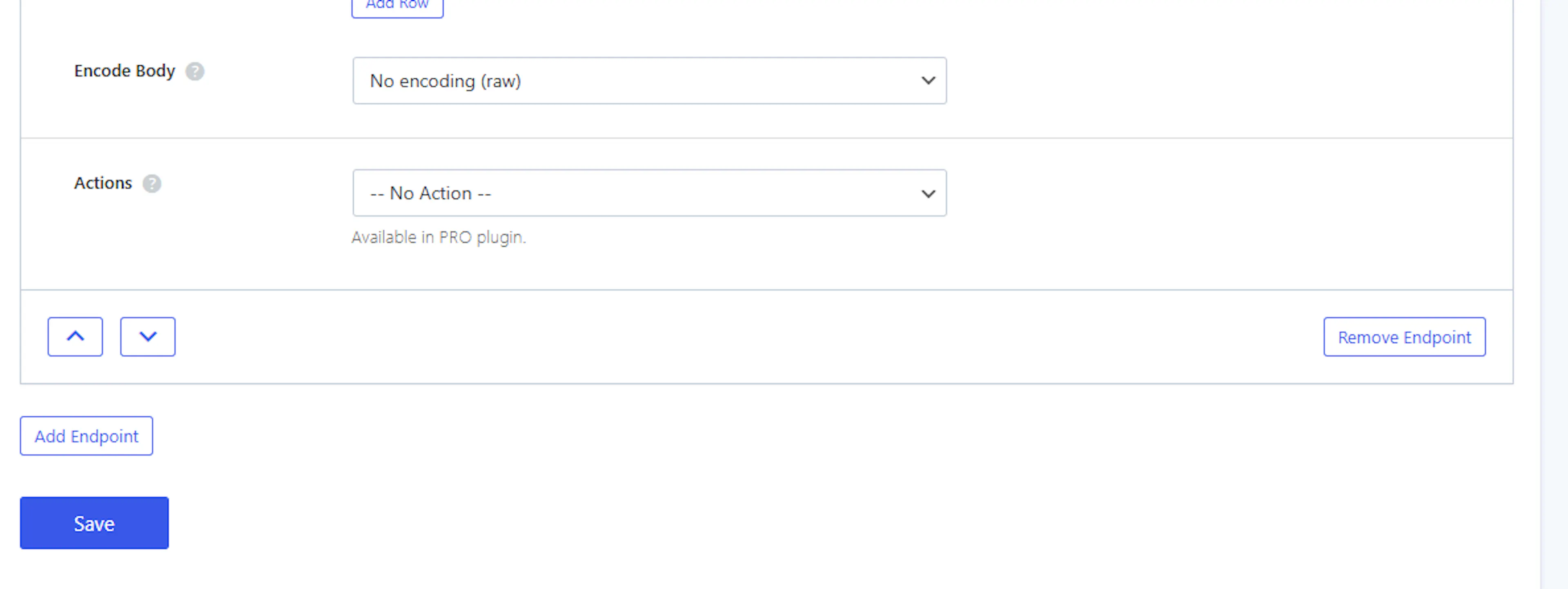
Lastly we will set the Encode Body to raw format:

Be sure to save your API endpoint here:
5. Test the API connection
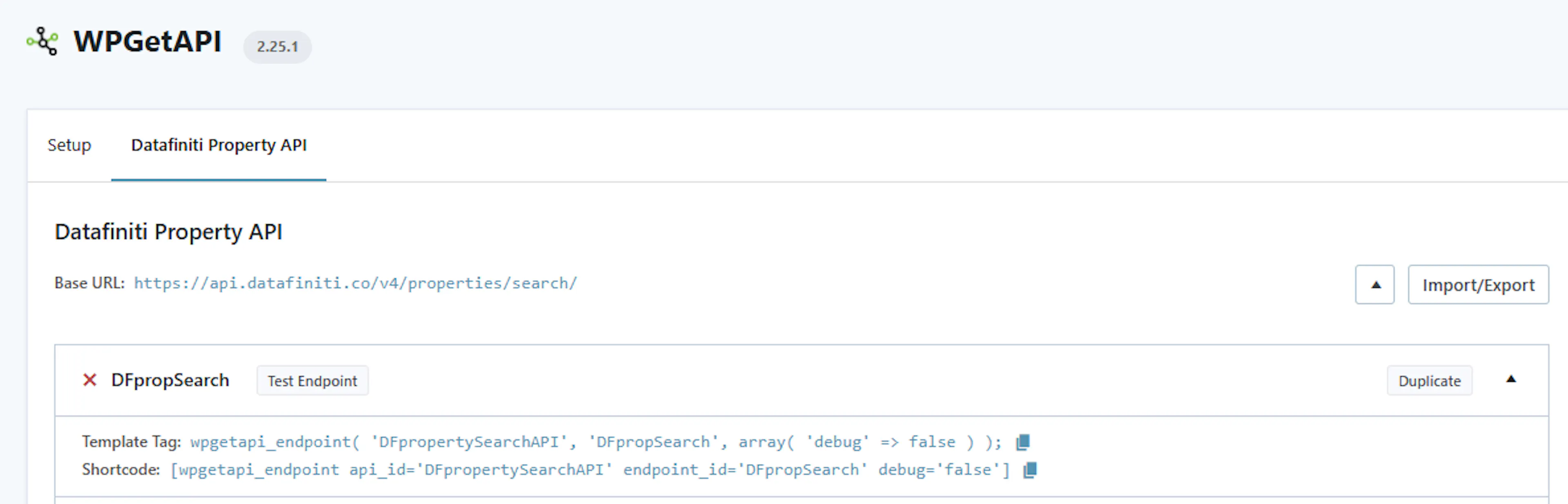
You can test you configured endpoint by clicking "test endpoint" here:
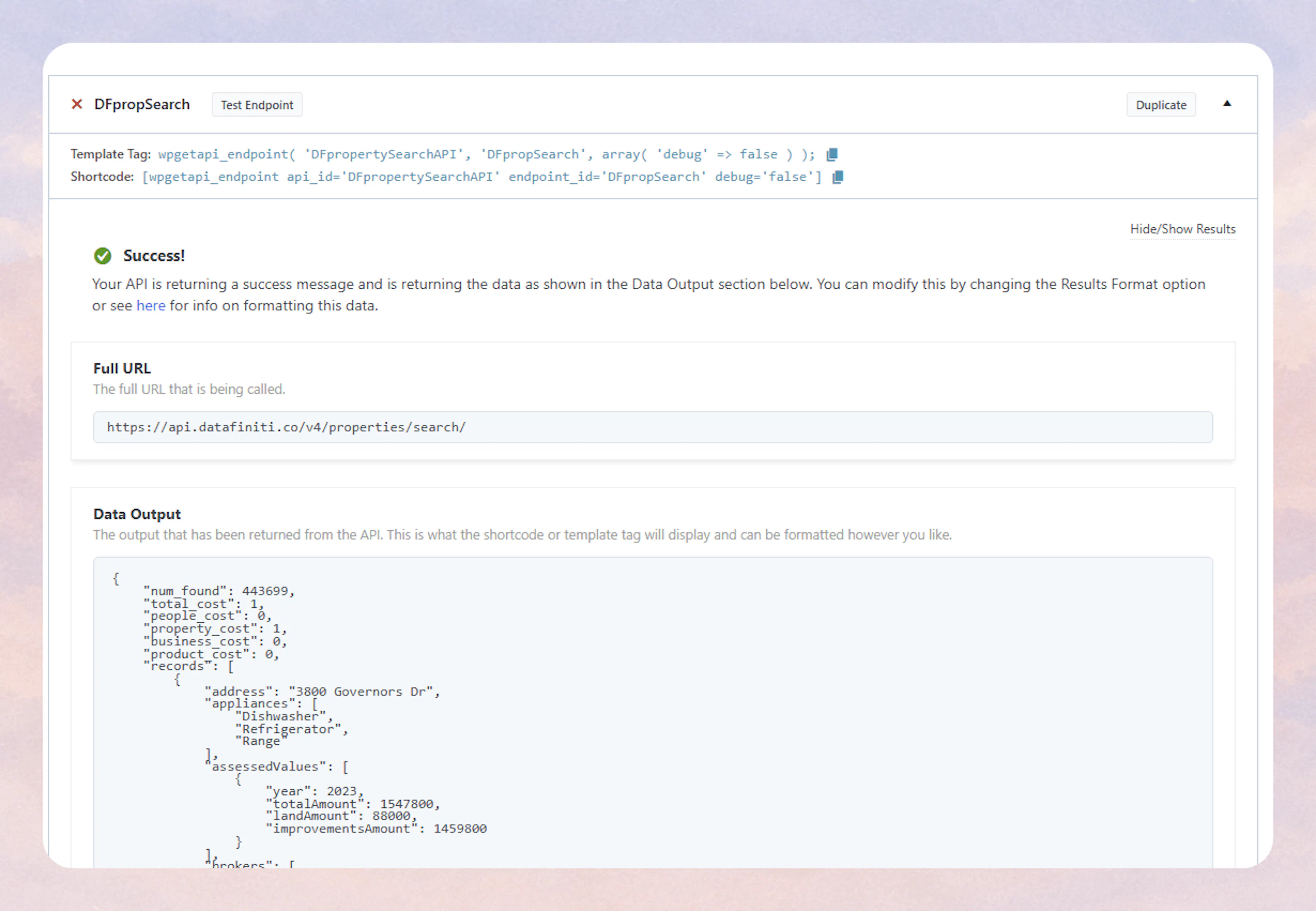
If the connection is successful, you will see a response with property data.
6. Review and publish
Now with your Datafiniti API endpoint integrated into WPgetAPI you are insert any pre-built API call directly into your Wordpress webpage. For more complex API integration or question on how to filter data, you can review our Use Cases for Product Data Or contact your Datafiniti rep at support@datafiniti.co