
Settings
Datafiniti Settings Walkthrough
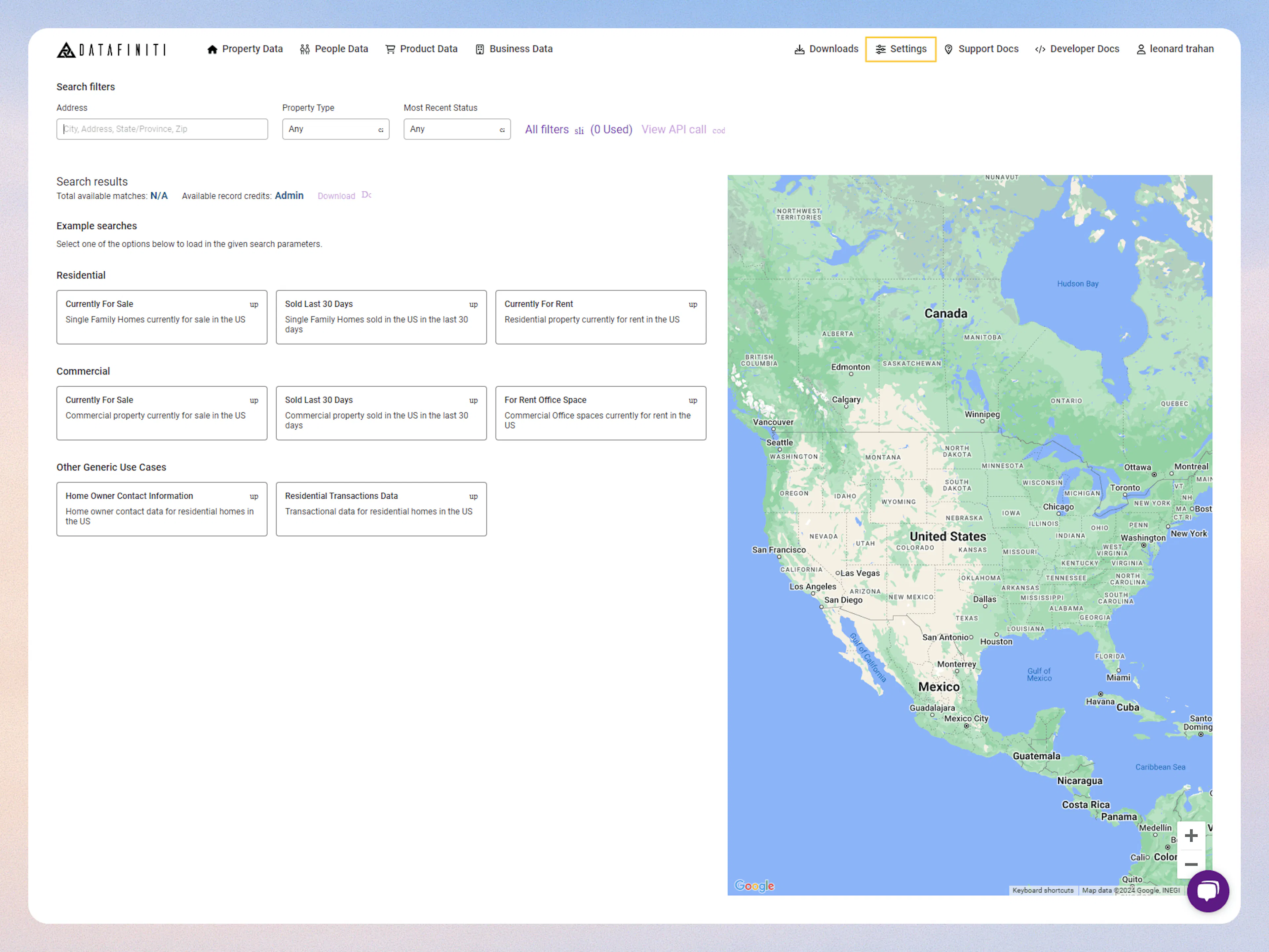
The "Settings" page allows you to change settings on your account, access downloads, and download your Postman Collection for API integration!
1. The Settings Page
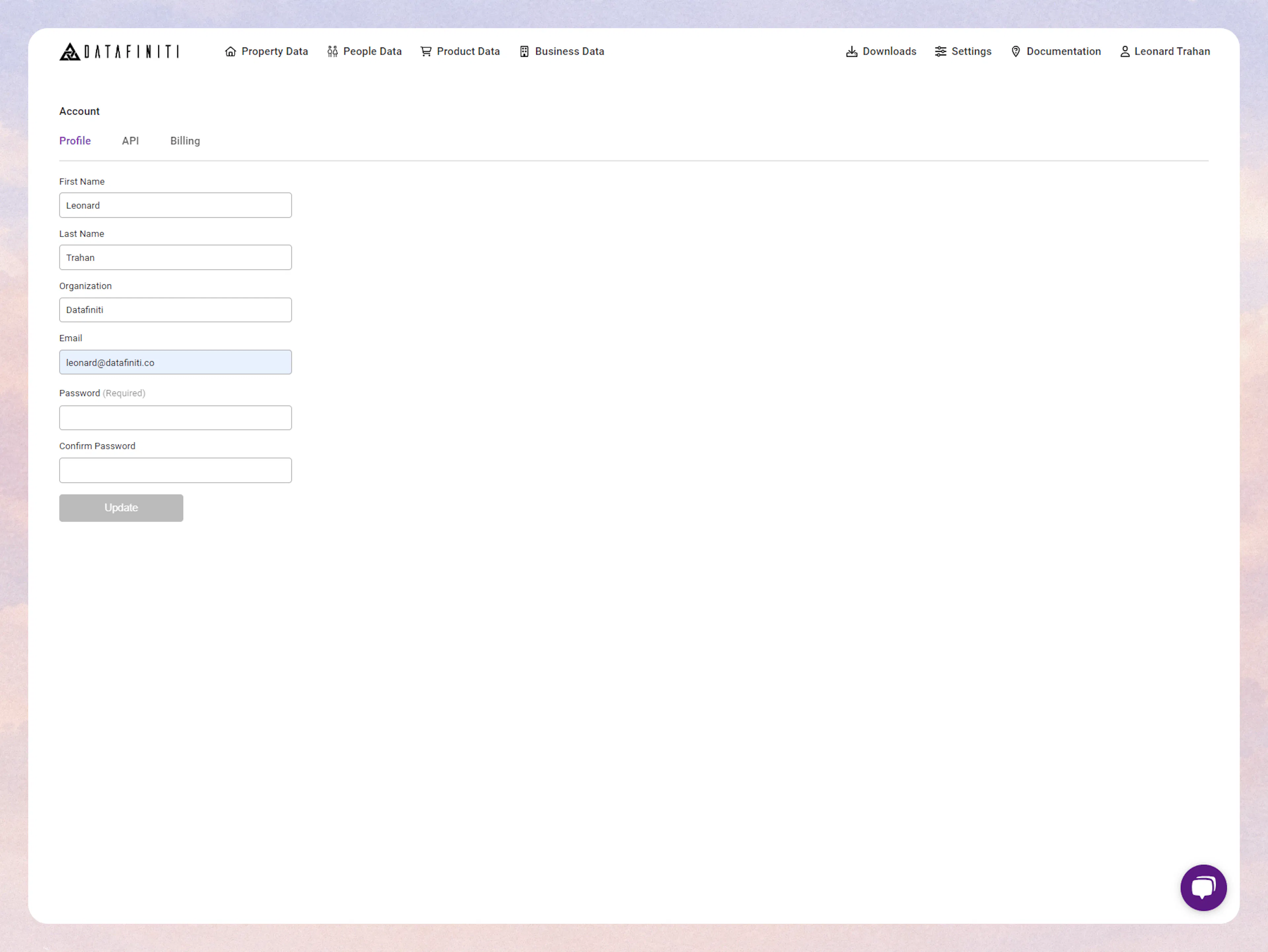
2. Edit Your Profile
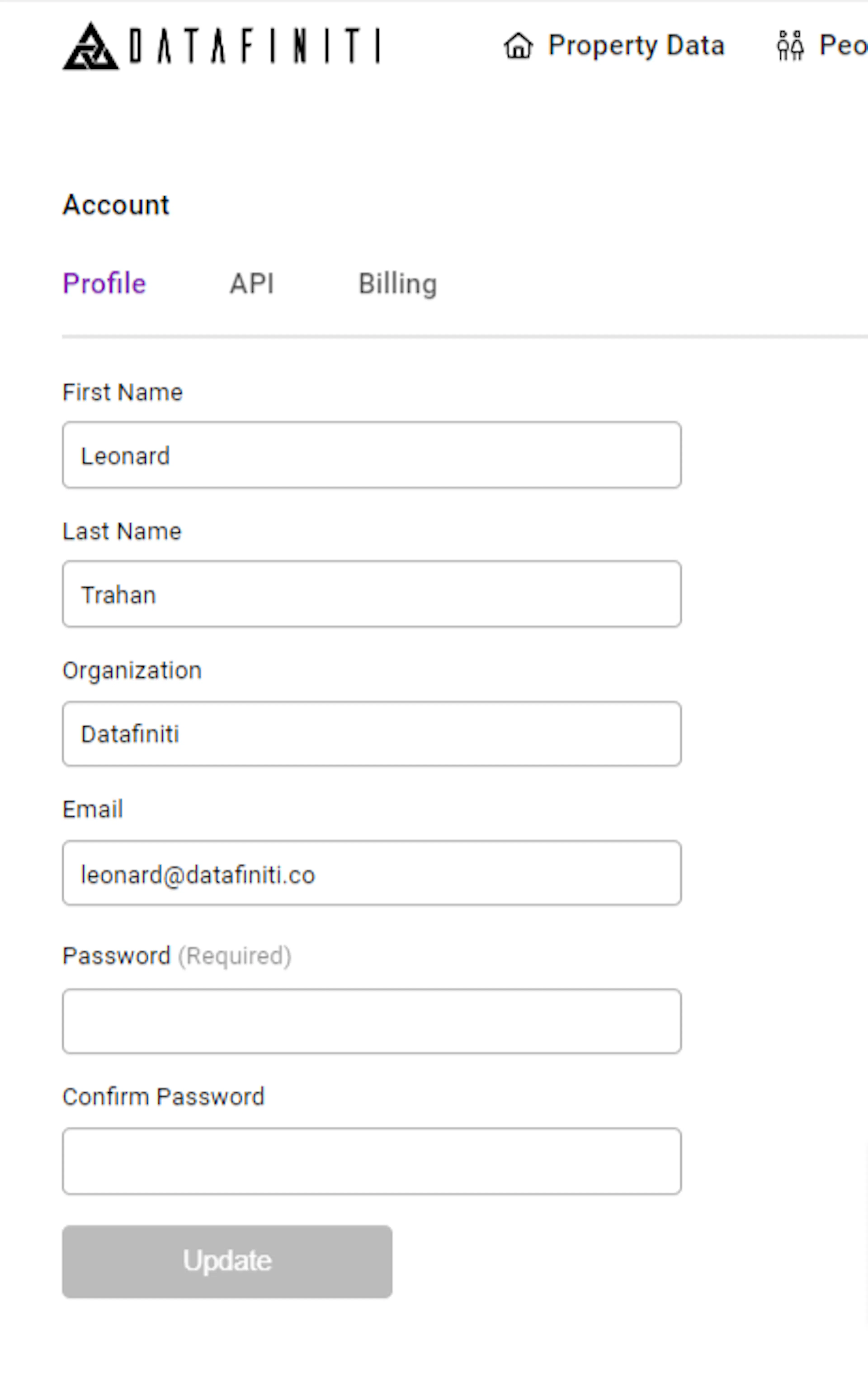
3. Change Your Password
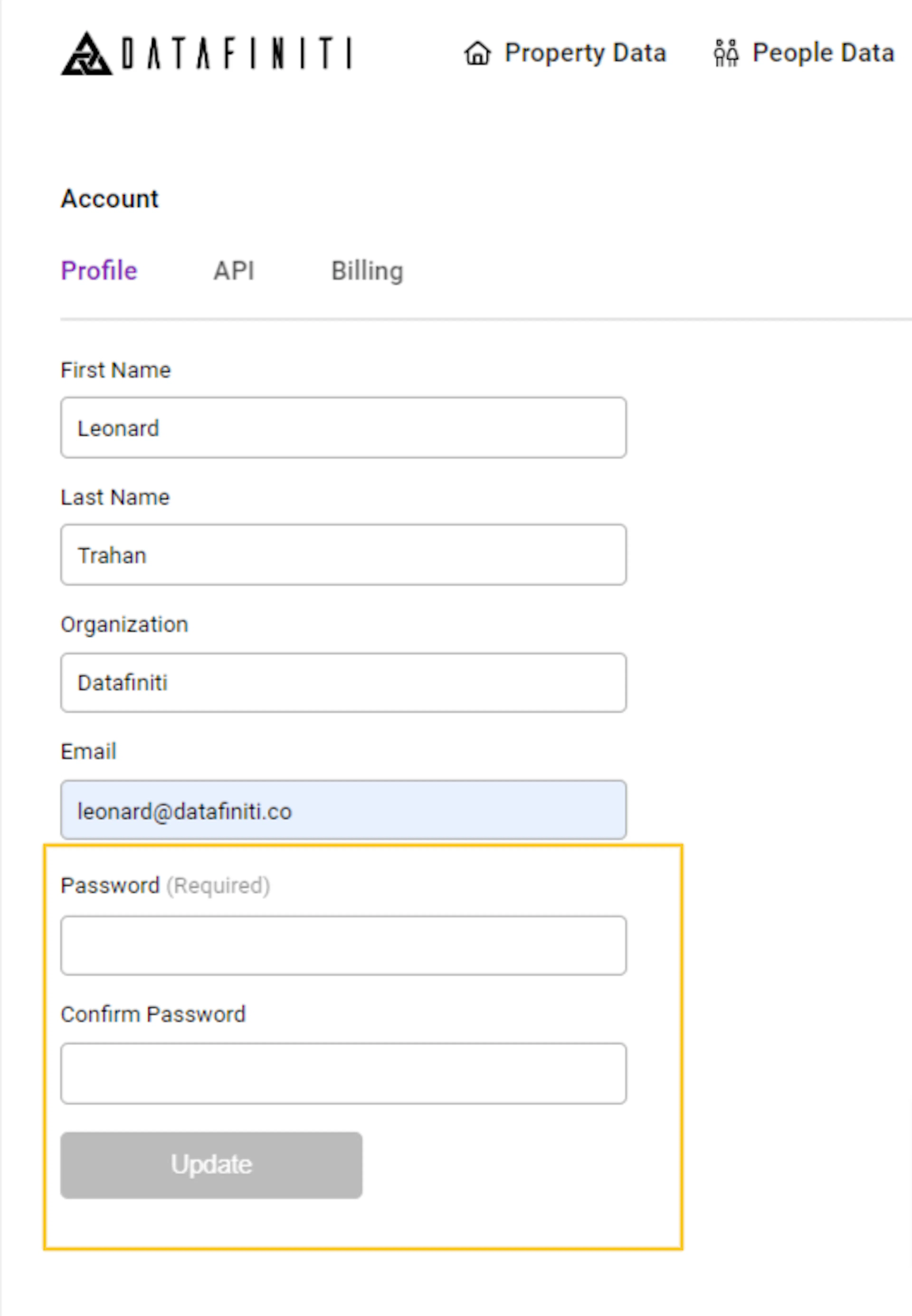
Optionally you can reset through an email here.
Password reset & your API token
Please note, if you reset or change you password to your account, that this will regenerate a new API token for your account. If you have automated scripts / code with the old API token you will have to replace it with the new token.
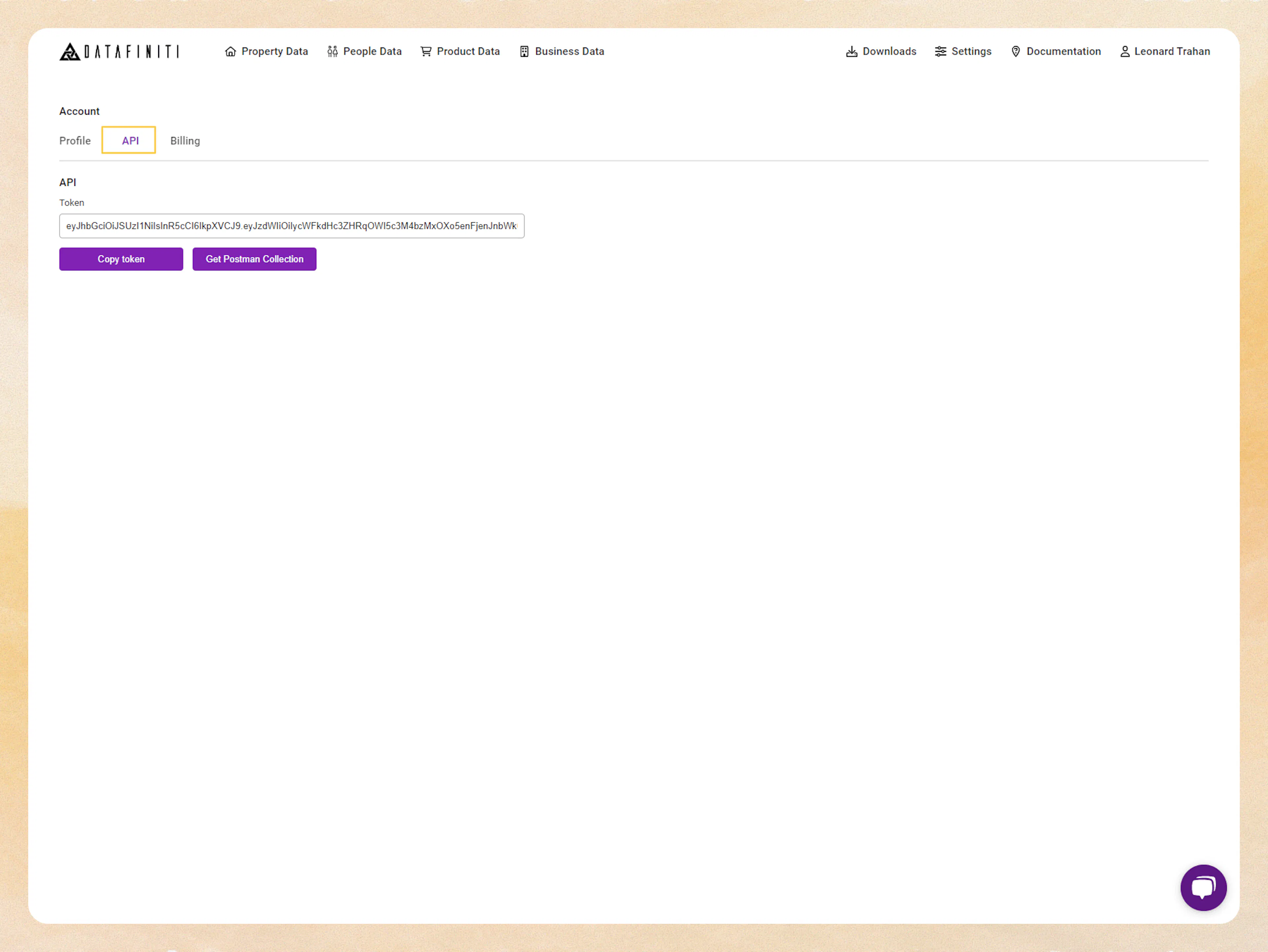
4. API Key
https://portal.datafiniti.co/settings/api
Your API key can be found in the general "setting" page here:
5. Change / update your data plan
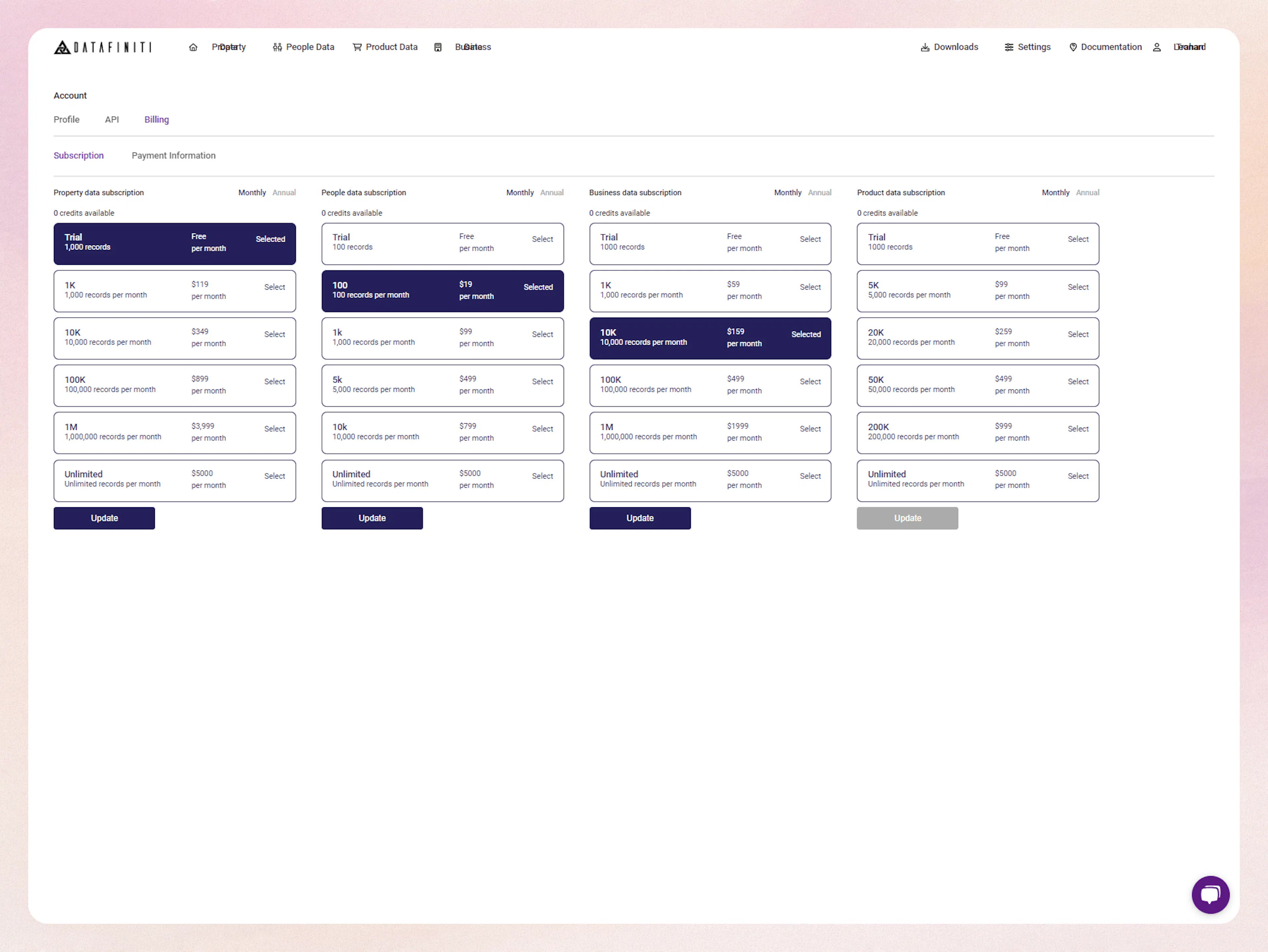
You can change subscription plans by simply selecting a different or new plan, highlight it in dark blue. Then click "update" and wait for a confirmation to appear.
Different Data Types
Please note that each data type need to be updated separately. You may have to refresh the page before selecting another data type and switching your plan.
Credit reset upon changing subscription plan
Please know that if you intend on changing your subscription plan that you will reset you current pool of credits to 0. We do not carry over any unused credits from the old plan to the new plan.
Also your subscription renewal data will be changed to the data of updating your plan.
If you need assistance on changing / updating your plan please contact us at billing@datafiniti.co
6. Billing
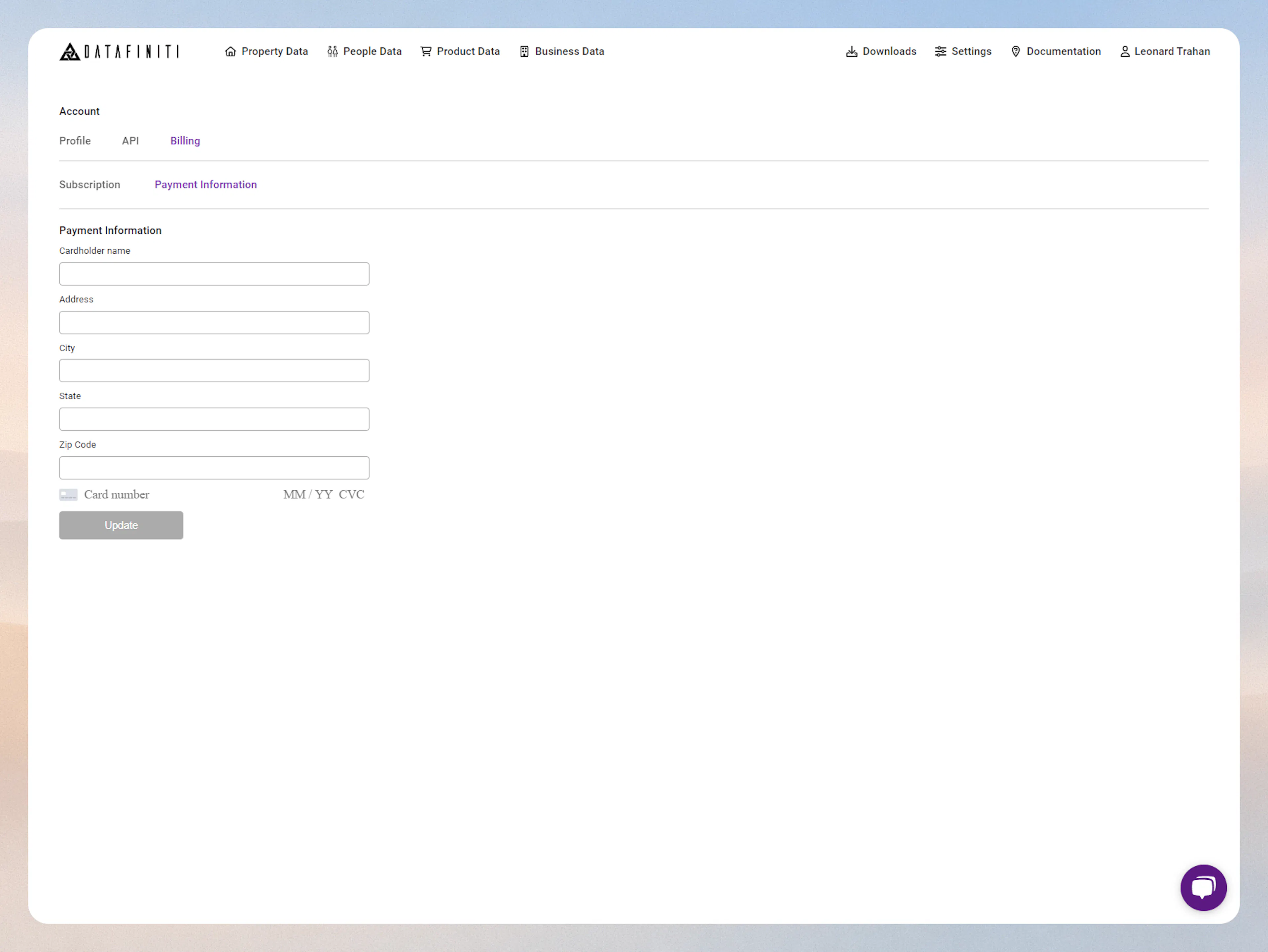
https://portal.datafiniti.co/settings/billing/payment
Your billing and payment information can be updated from this page: