
Postman: Endpoint Overview
This walkthrough will briefly describe each endpoint in the Datafiniti API.
1. Open Your Datafiniti Collection
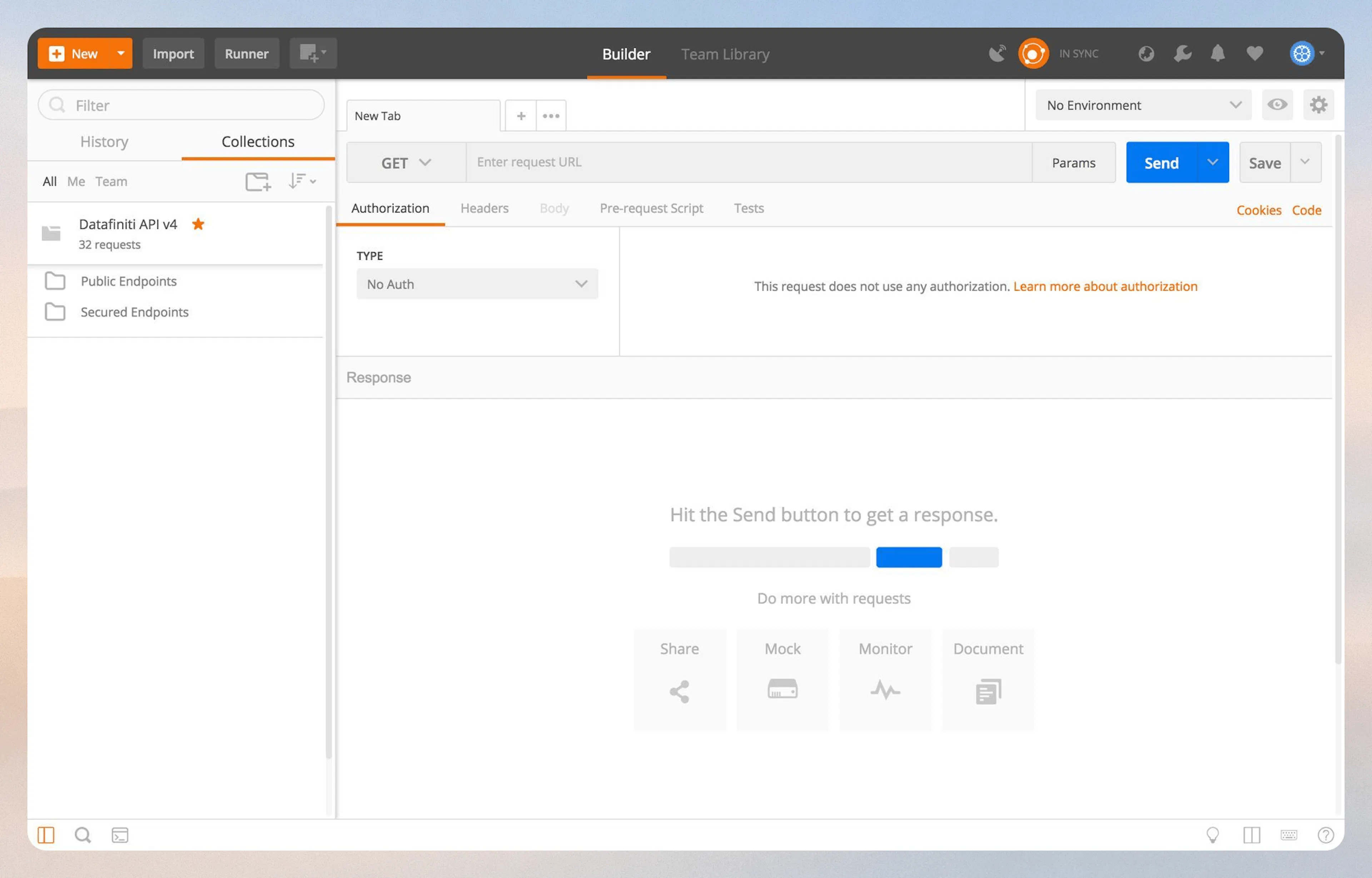
When you click on your Datafiniti API v4 collection, you will have two subfolders. One with Public Endpoints and one with Secured Endpoints.
2. Health Check
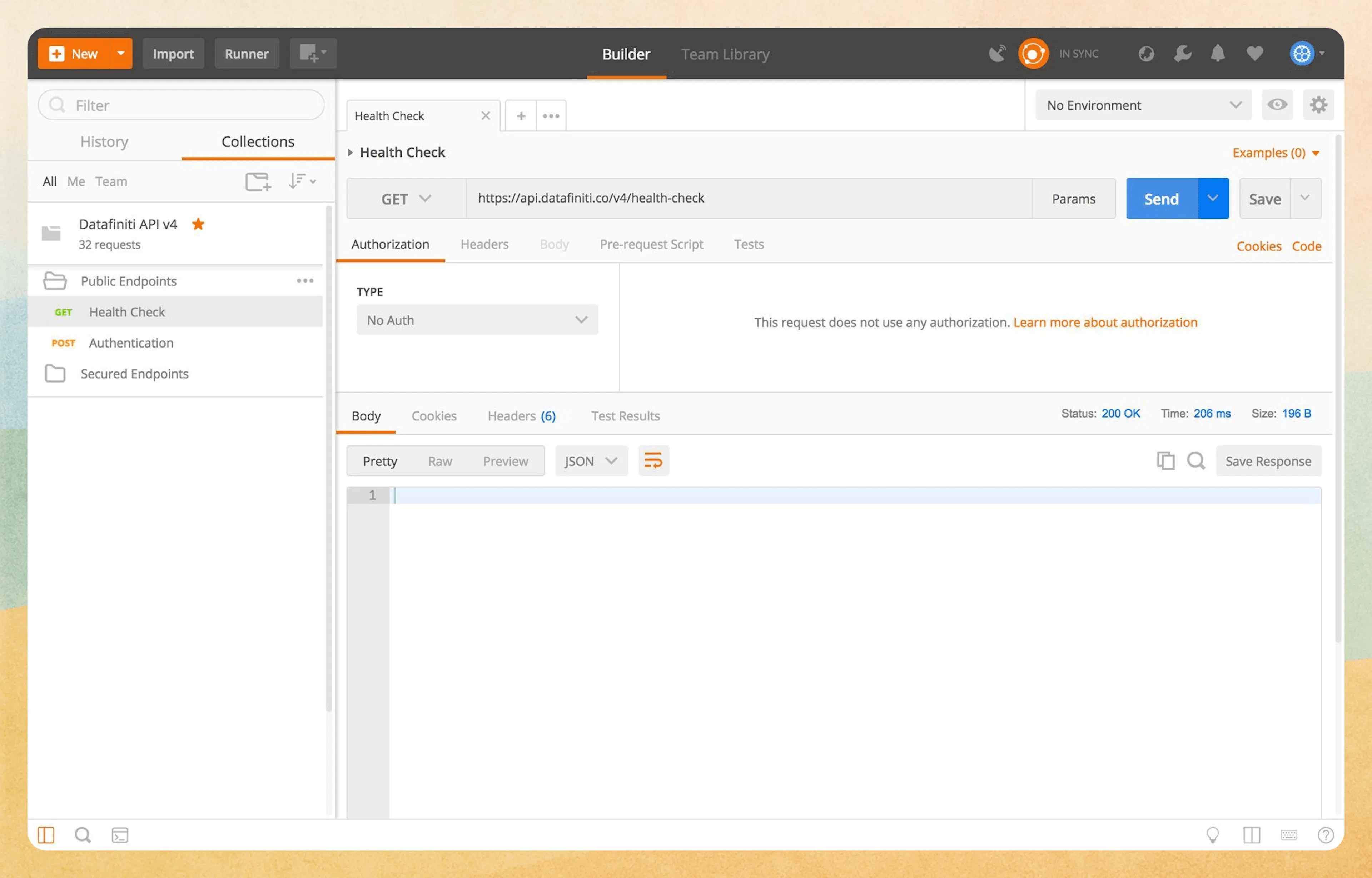
The "Health Check" endpoint can be used to confirm that your computer is successfully communicating with our API. Note the 200 OK response code.
3. Authentication
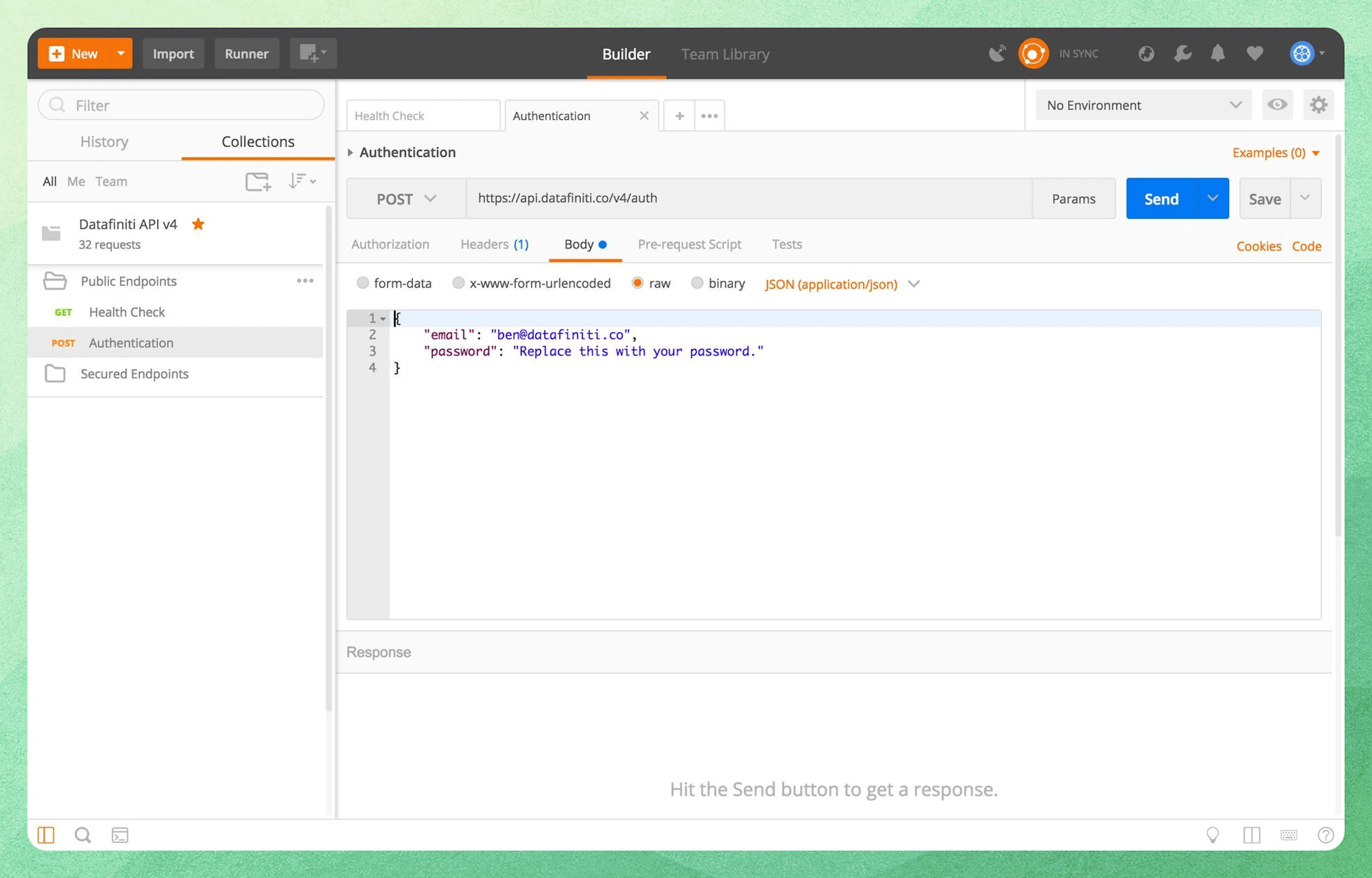
"Authentication" will grab your user token when you enter in the e-mail address and password associated with your account.
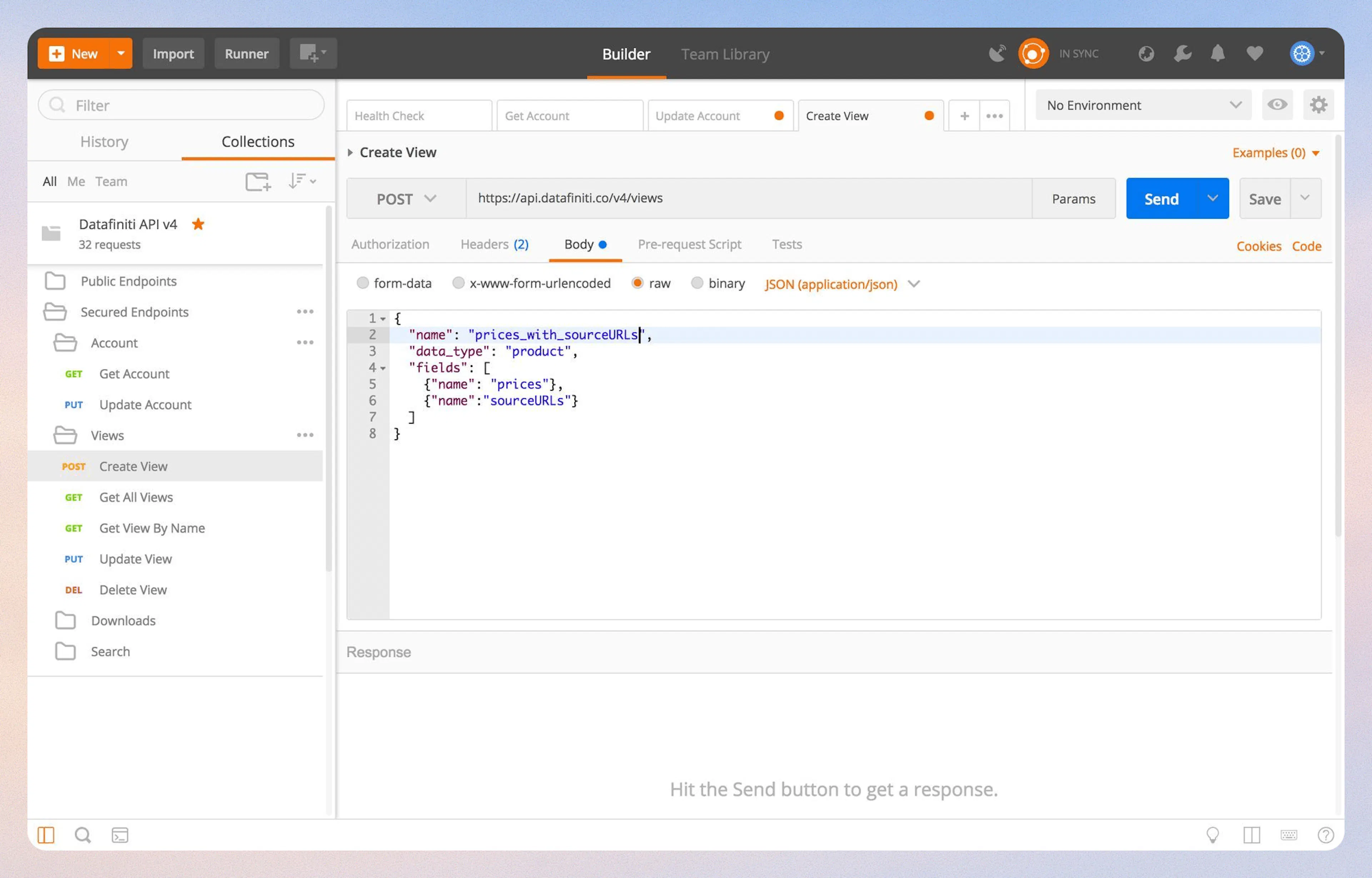
4. Creating a View
When you use "Create A View," simply give it a name, data_type, and then set up the fields you'd like to see in that view. This view will be saved on your account for you to use when downloading records.
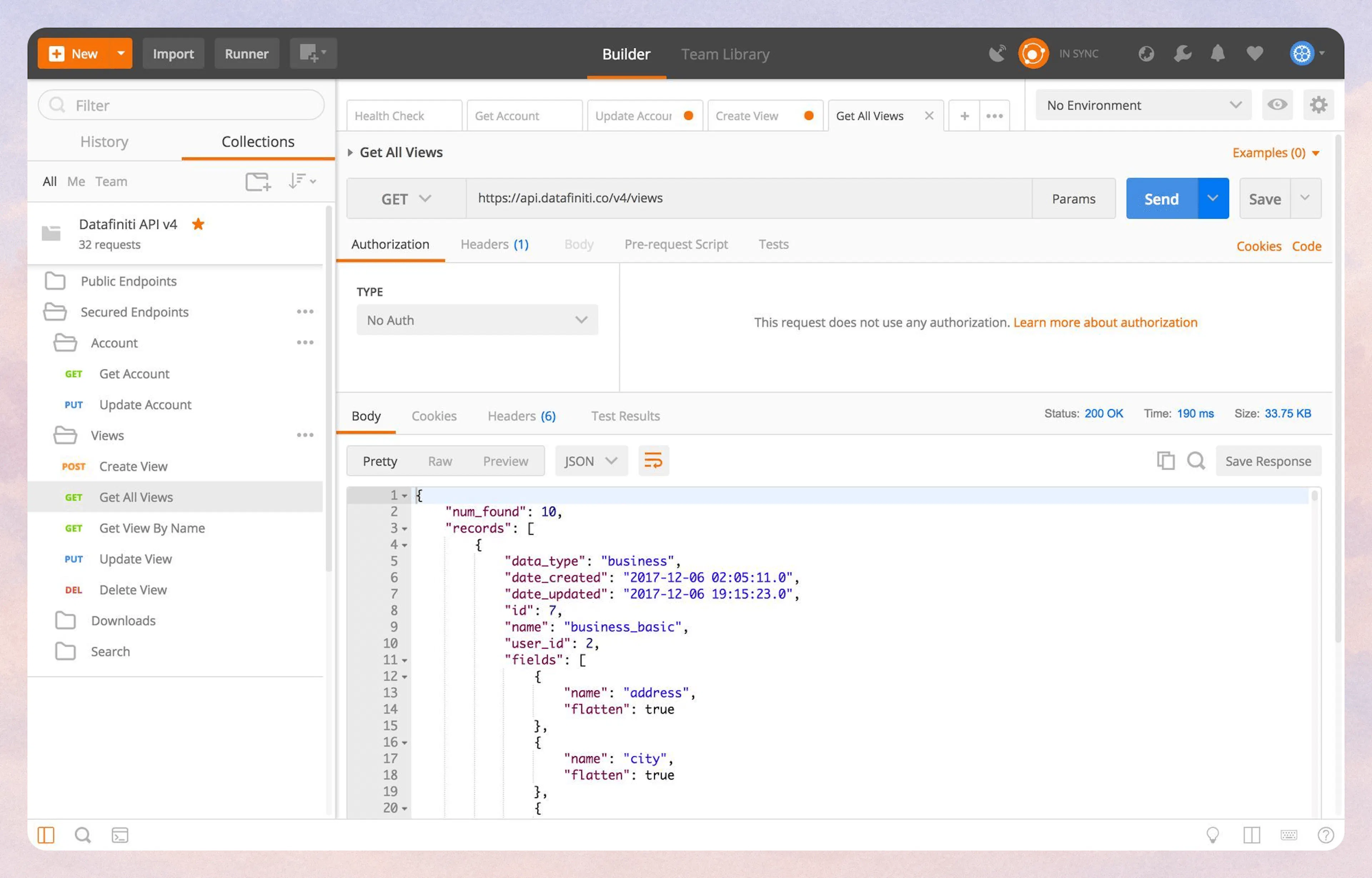
5. Get All Views
"Get All Views" will generate a list of all views available on your account as well as what those views show.
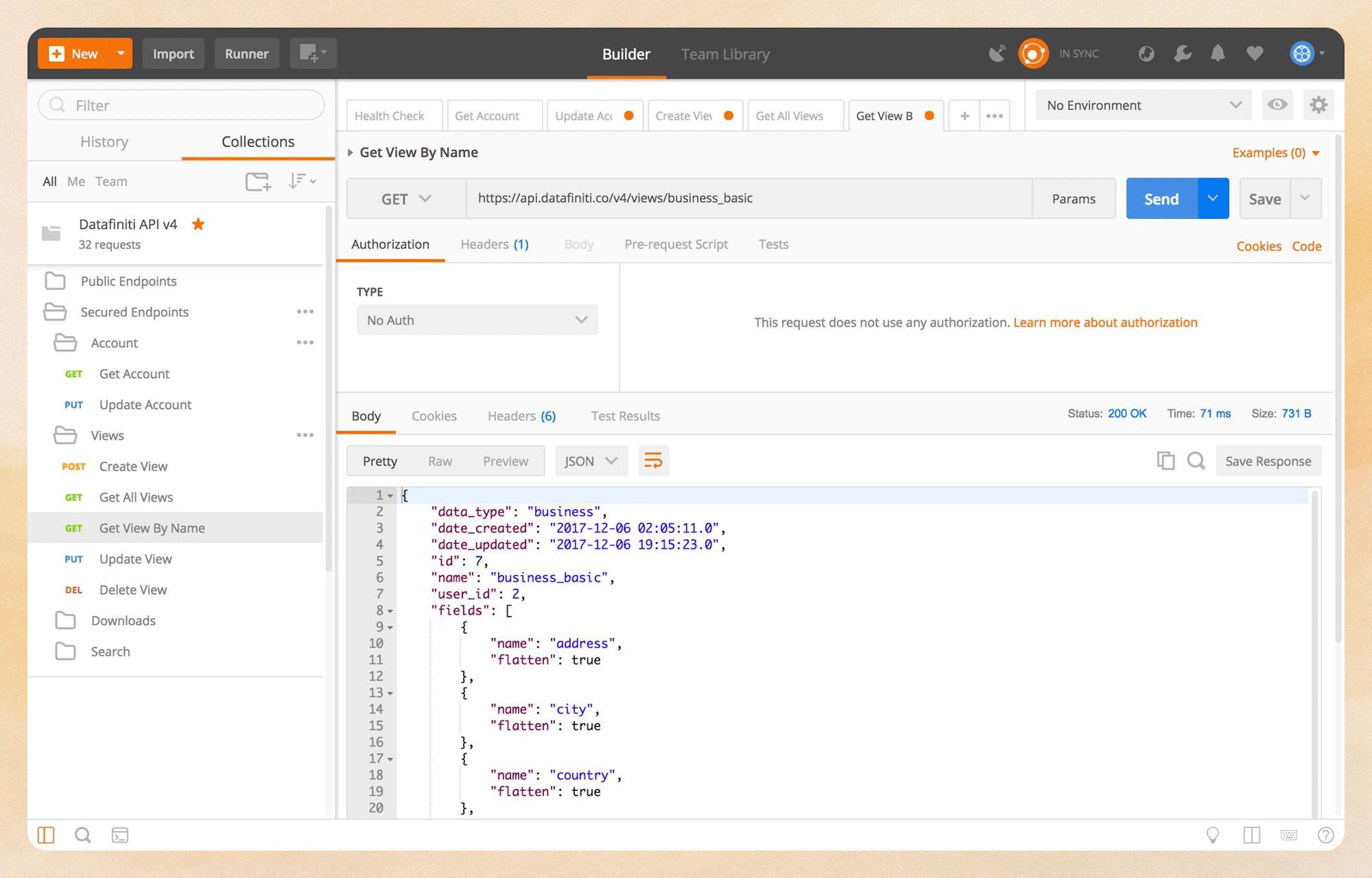
6. Get View By Name
If you know which view you are looking for and want to double check that it collects a specific value, you can use "Get View By Name" to pull up that view as well as all relevant information about it. You simply enter the name of the view you'd like to update at the end of the GET request.
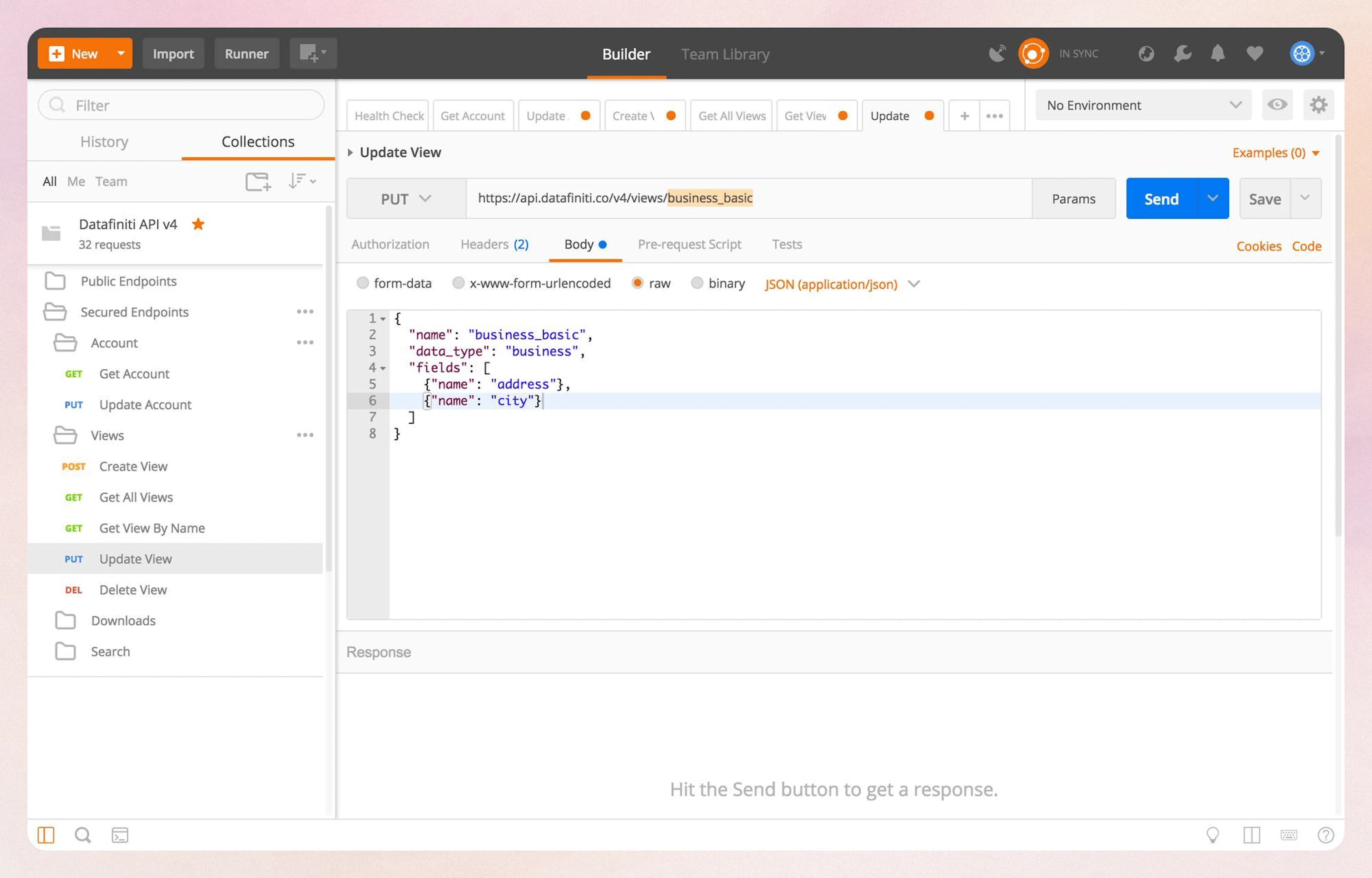
7. Update View
"Update View" will allow you to change the fields, name, and data_type of a specific view. You simply enter the name of the view you'd like to update at the end of the PUT request.
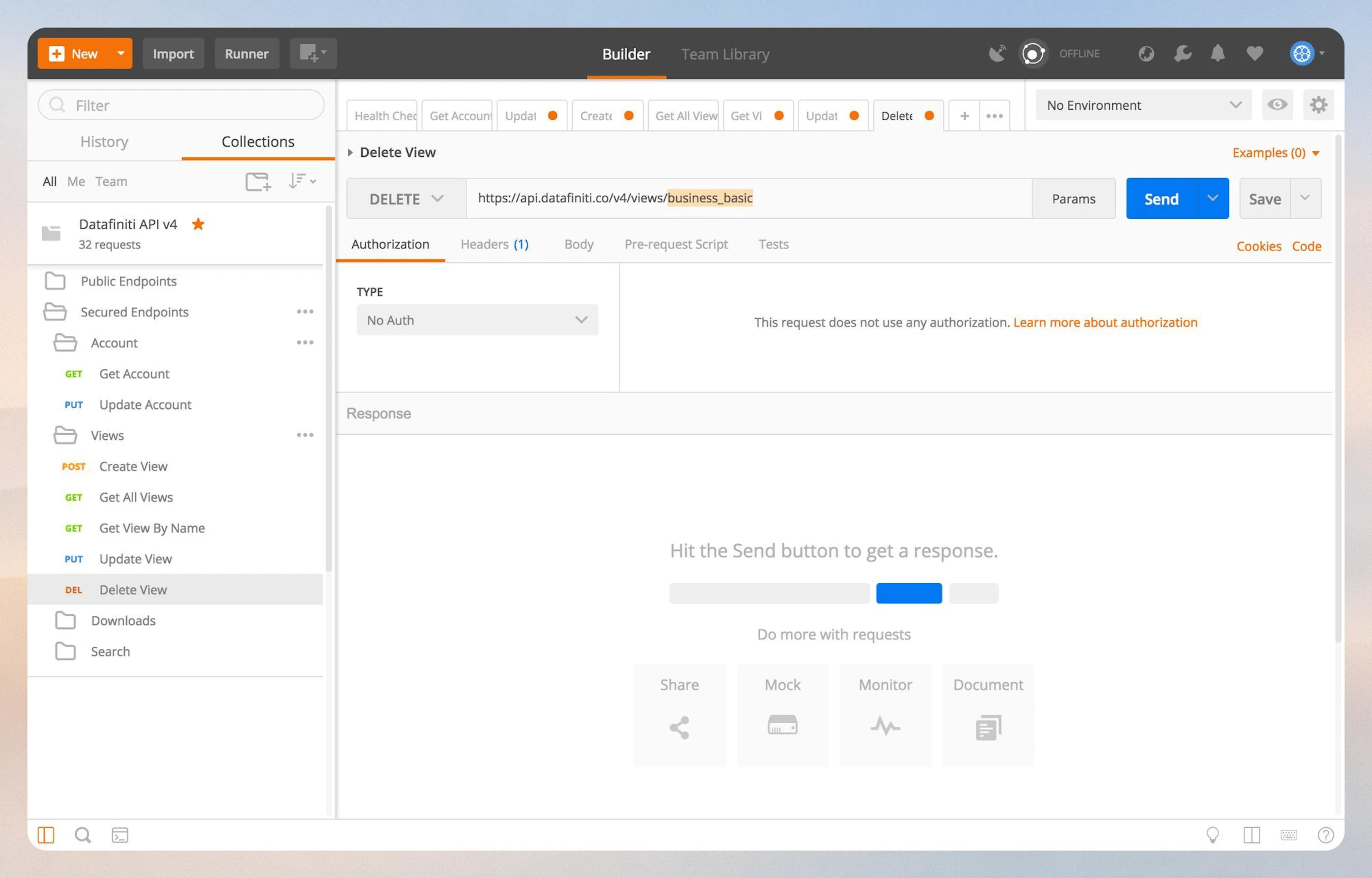
8. Delete View
"Delete View" will delete a view based on the name you put at the end of the DELETE request.
9. Get All Downloads
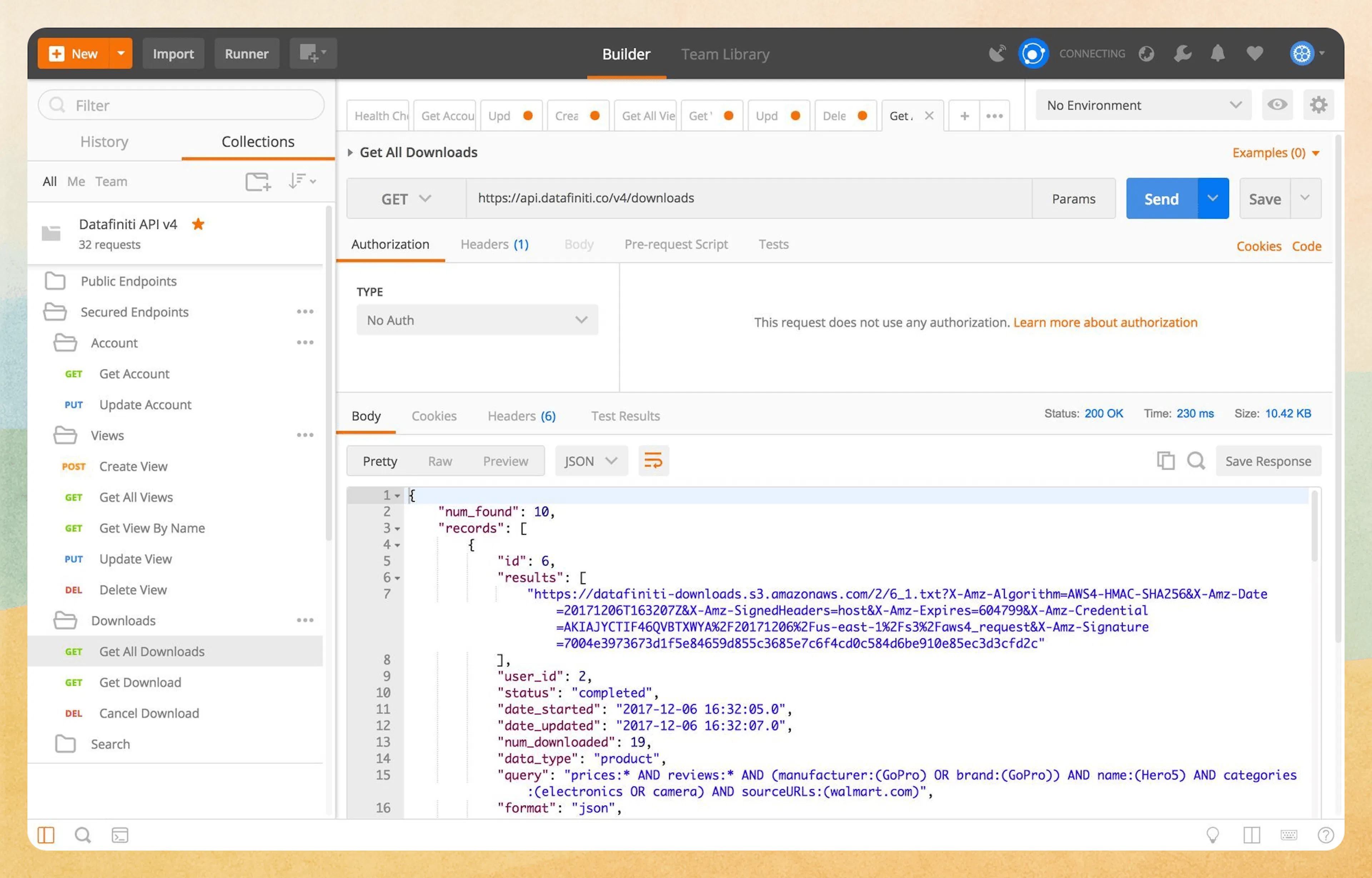
"Get All Downloads" will generate a list of all the downloads you have run on your account.
Result File Expiration
Keep in mind that your result files will expire after 7 days, even if the result file link shows up when you recall your downloads.
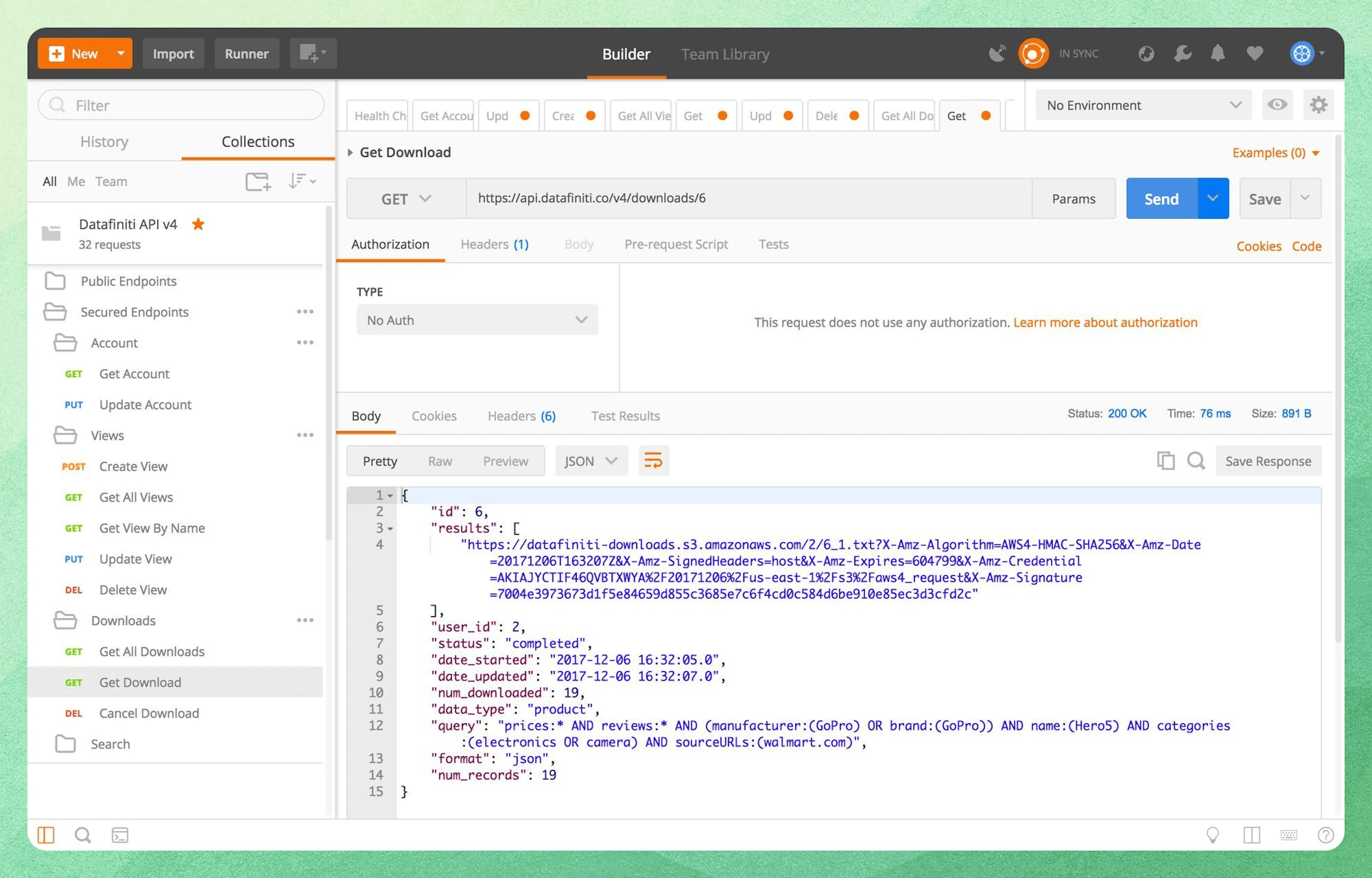
10. Get Download
"Get Download" is used to call a specific download result file. Simply enter the download ID at the end of the GET request. This request also displays relevant information pertaining to the download request such as if it's still running, when it was finished, number of records requested, data type, format, and the query used to generate the results.
11. Cancel Download
12. Searching the Databases
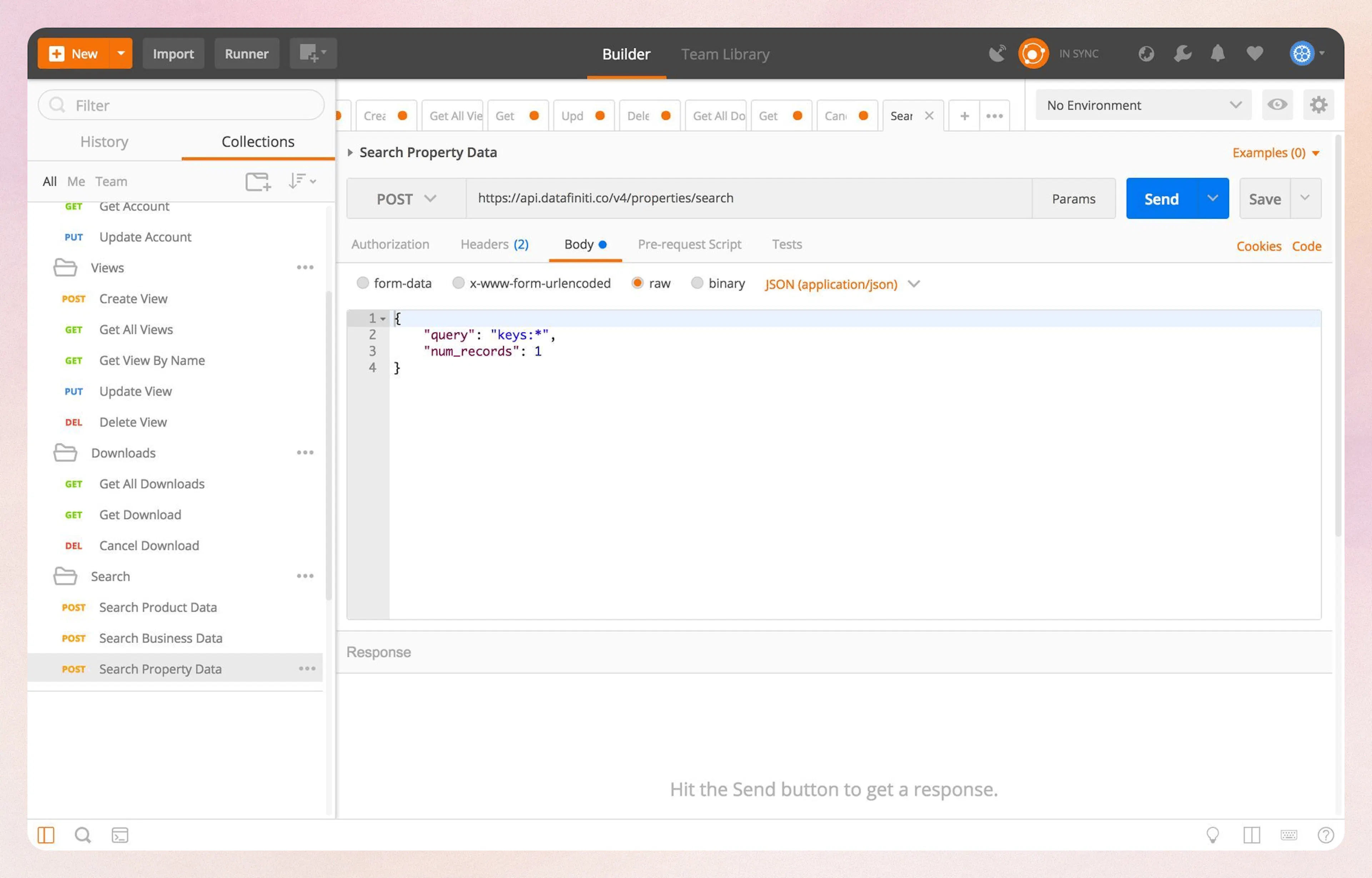
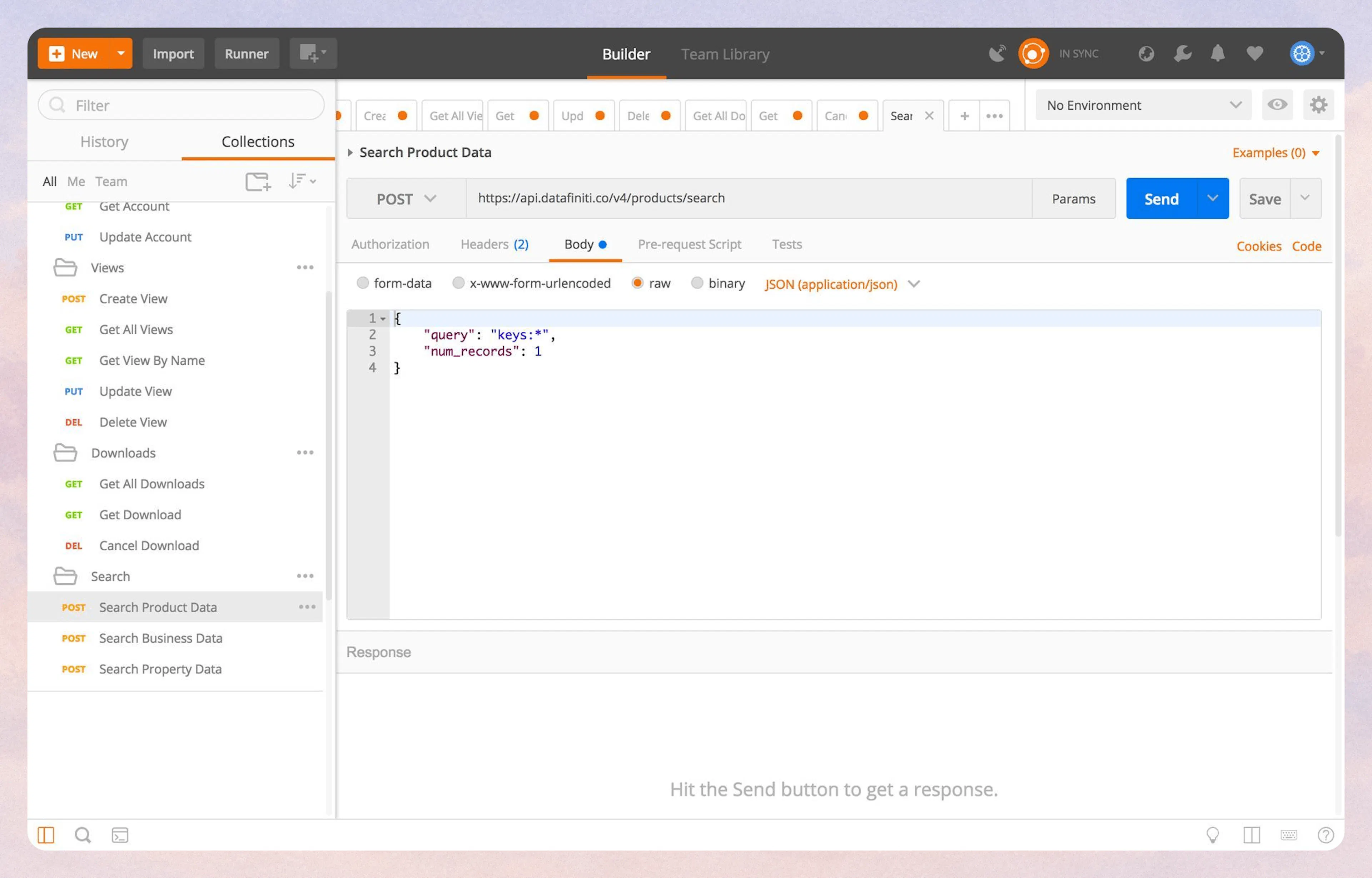
Click on "Search Product Data," and go to the "Body" tab to start querying our extensive Product Database!
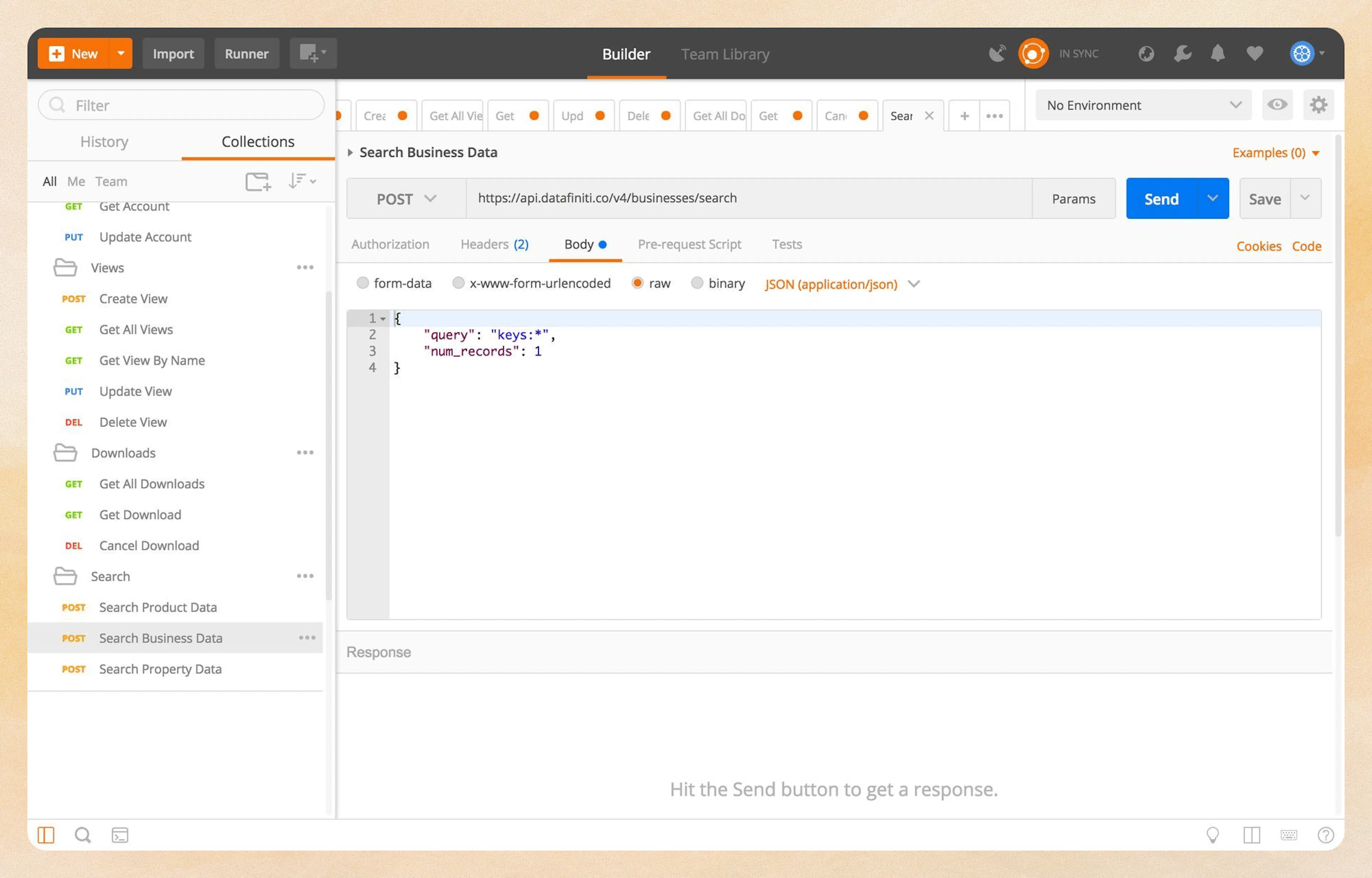
Click on "Search Business Data," and go to the "Body" tab to start querying our extensive Business Database!
Click on "Search Property Data," and go to the "Body" tab to start querying our extensive Property Database!